-1.png?width=151&height=28&name=Traact_Logo_Blue%20(1)-1.png)
What is a Contact?
A Contact represents an individual or entity recorded in the system. Each contact entry stores essential details—such as name, role, and contact information—to streamline communication and record-keeping.
Maintaining accurate contact profiles is essential because Traact serves as the registered agent and relies on the Contact Book to populate director and officer information in required compliance filings.
How to Add A Contact?
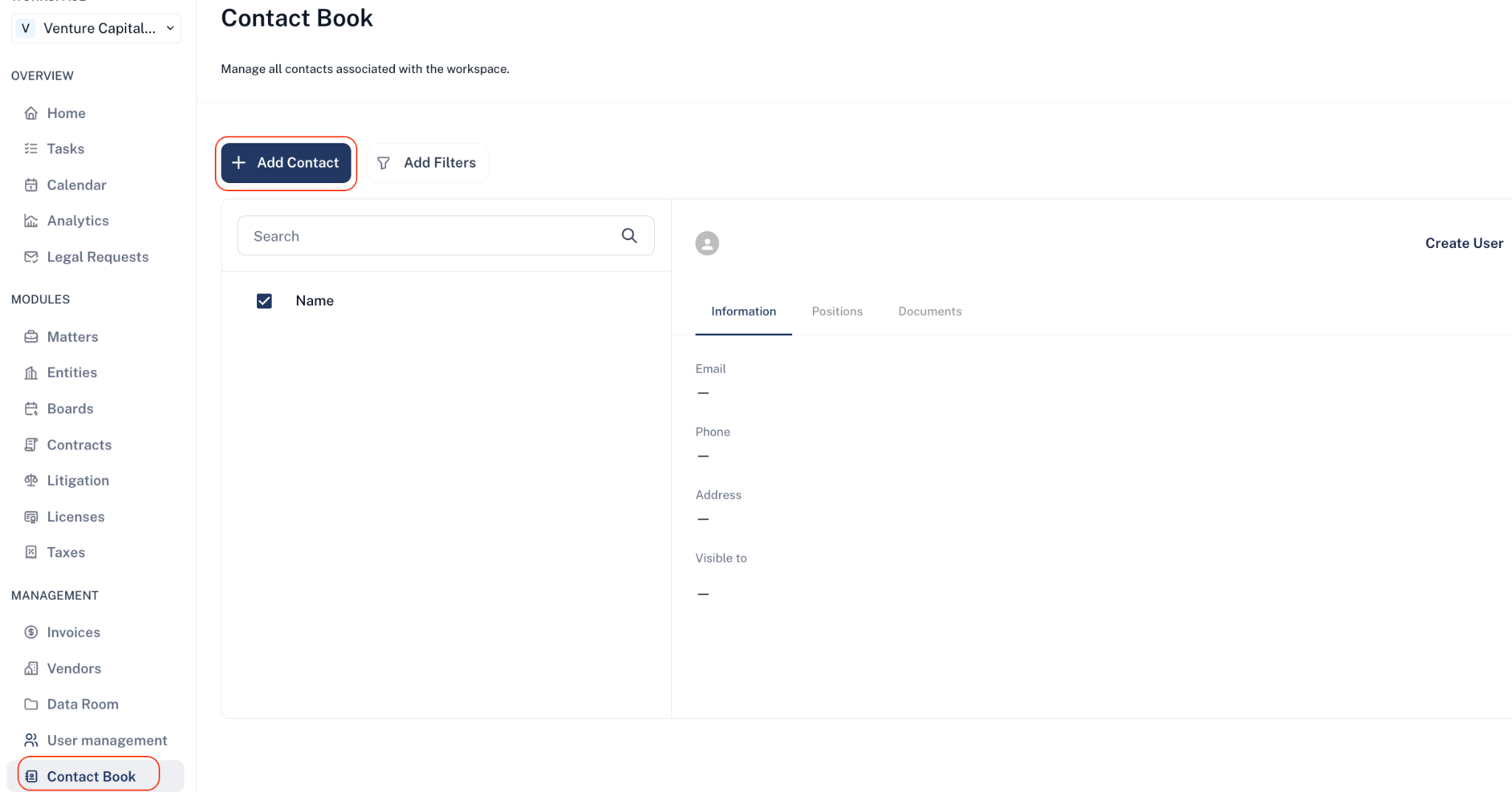
Step 1: Click Contact Book in the left menu, then click Add Contact.
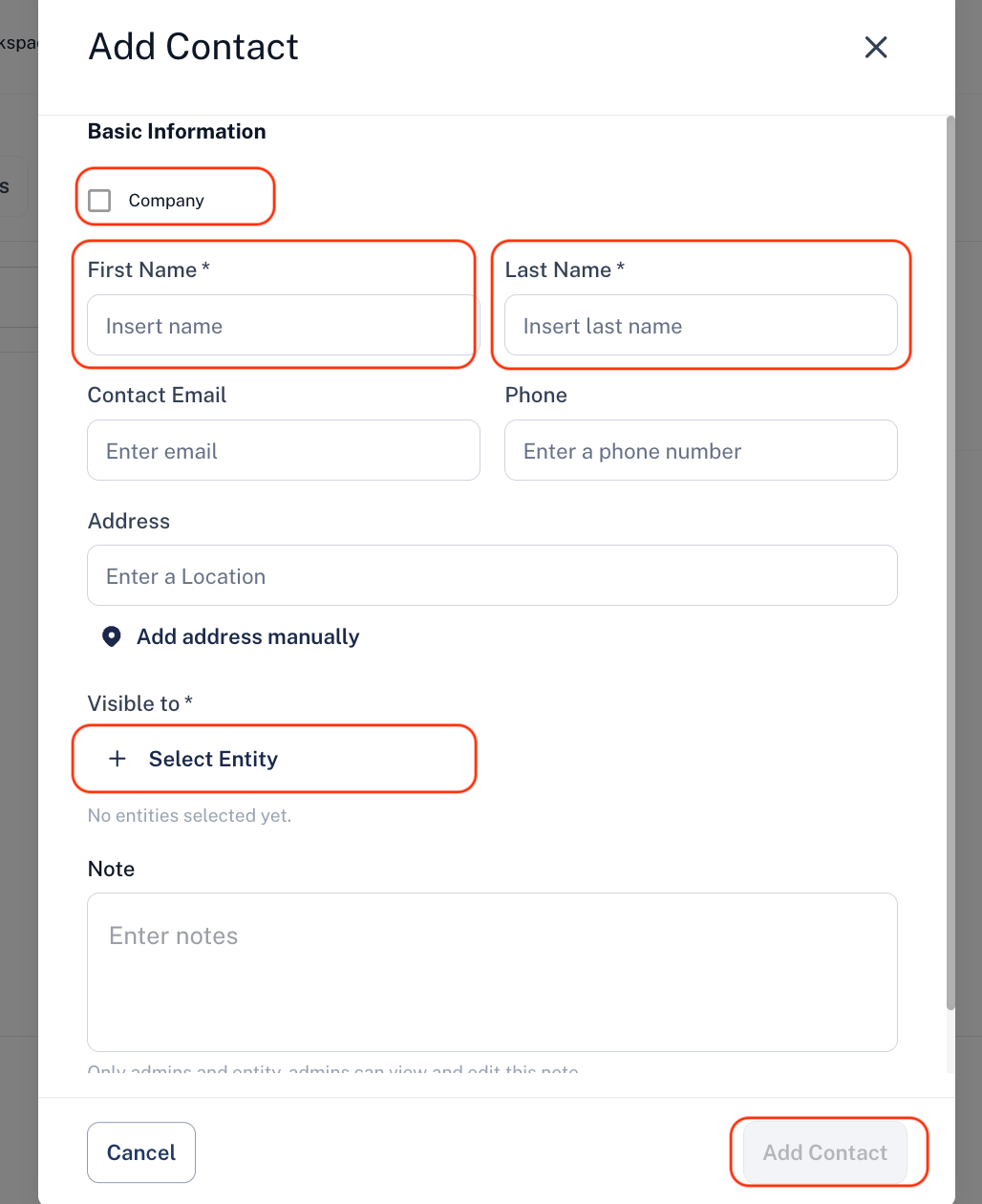
Step 2: Fill in the contact details:
- For a person, enter their First Name and Last Name.
- For a company, check the Company box and enter the organization’s name.
- Complete all required fields (marked with an asterisk *).
- To link the contact to an organization, click Select Entity.
Click Add Contact to save.
Manage a Contact
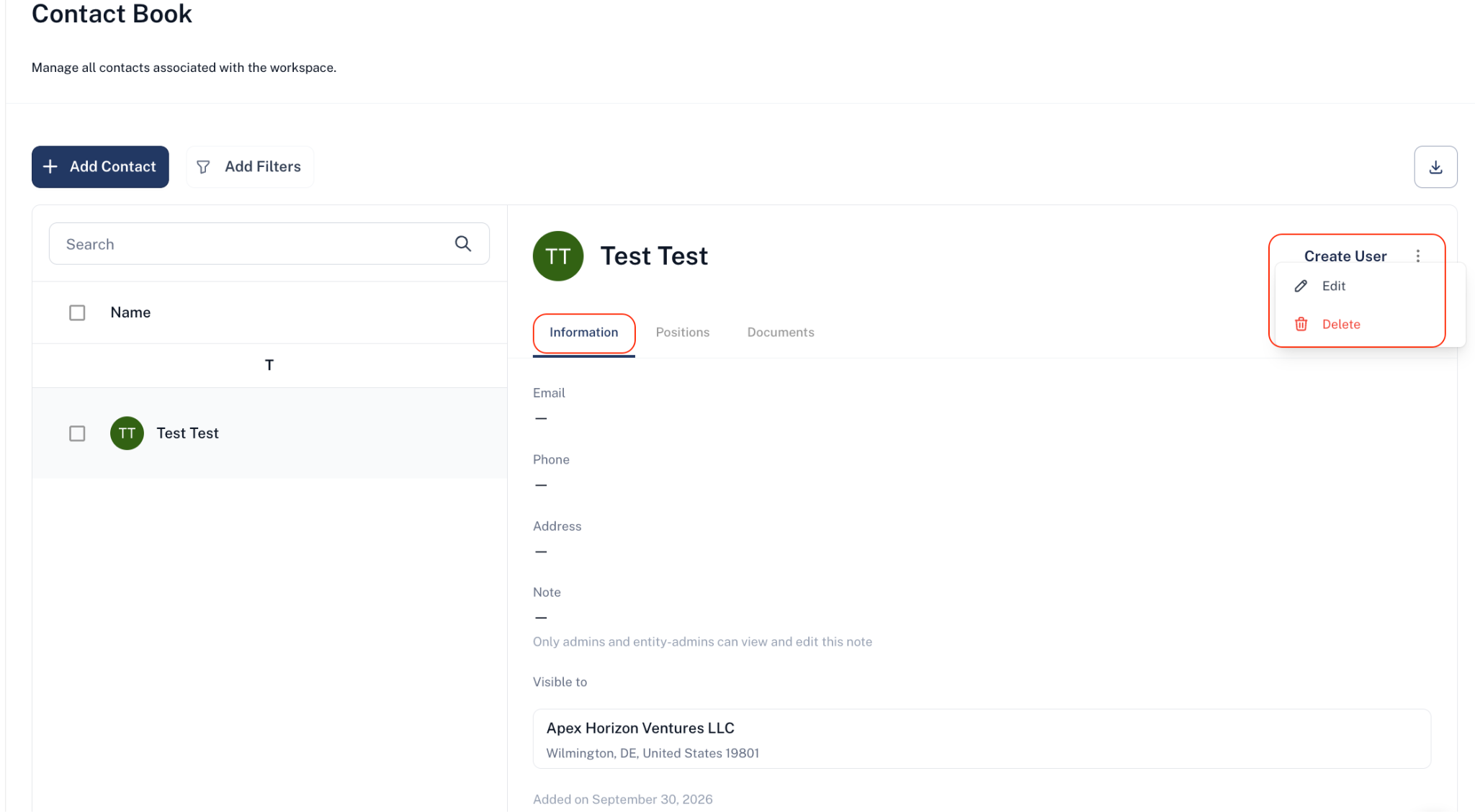
Step 3: Select a contact from the Contact Book.
Click the three-dot menu in the top-right corner to:
- Edit – Update the contact’s details.
- Delete – Remove the contact.
Assign a Position
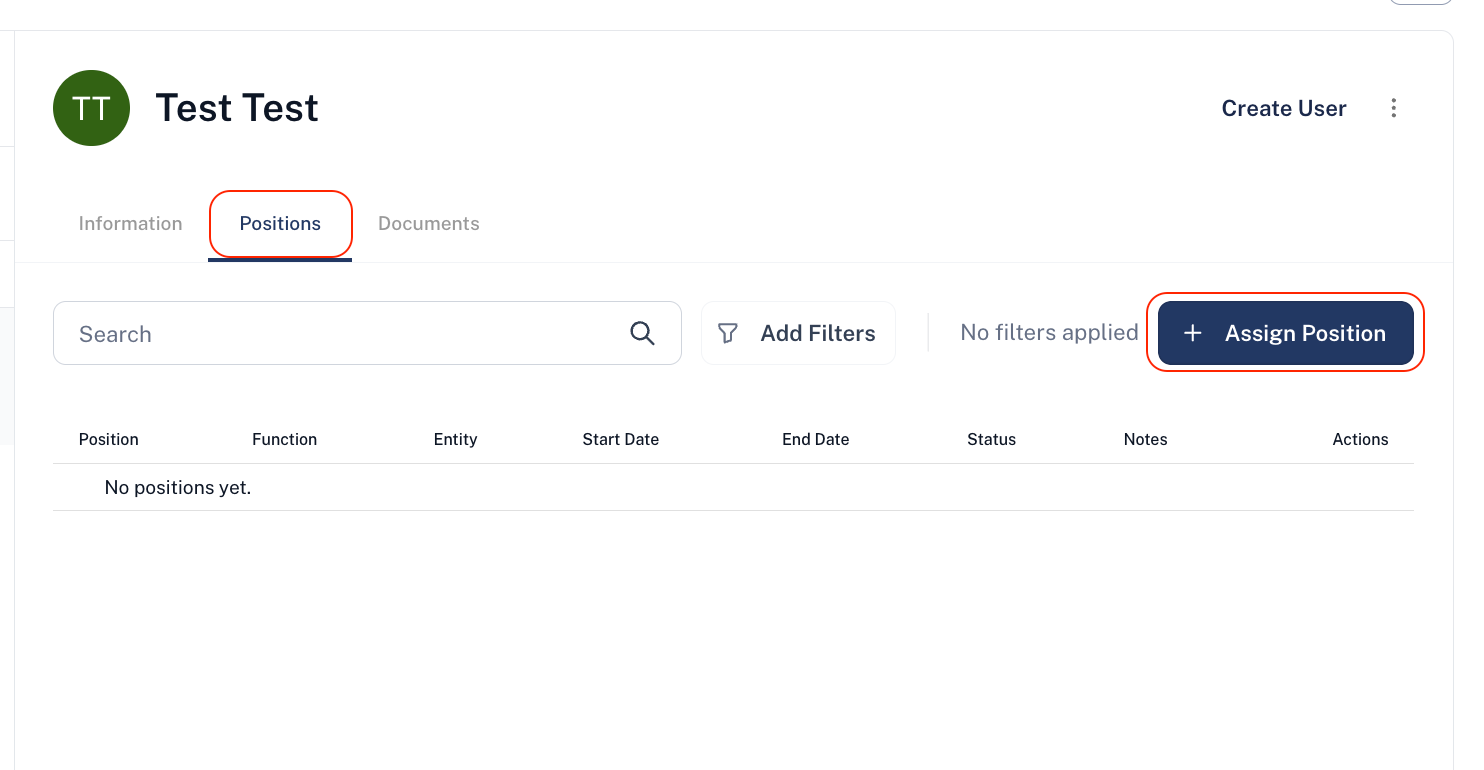
Step 4: Open the contact and click the Positions tab.
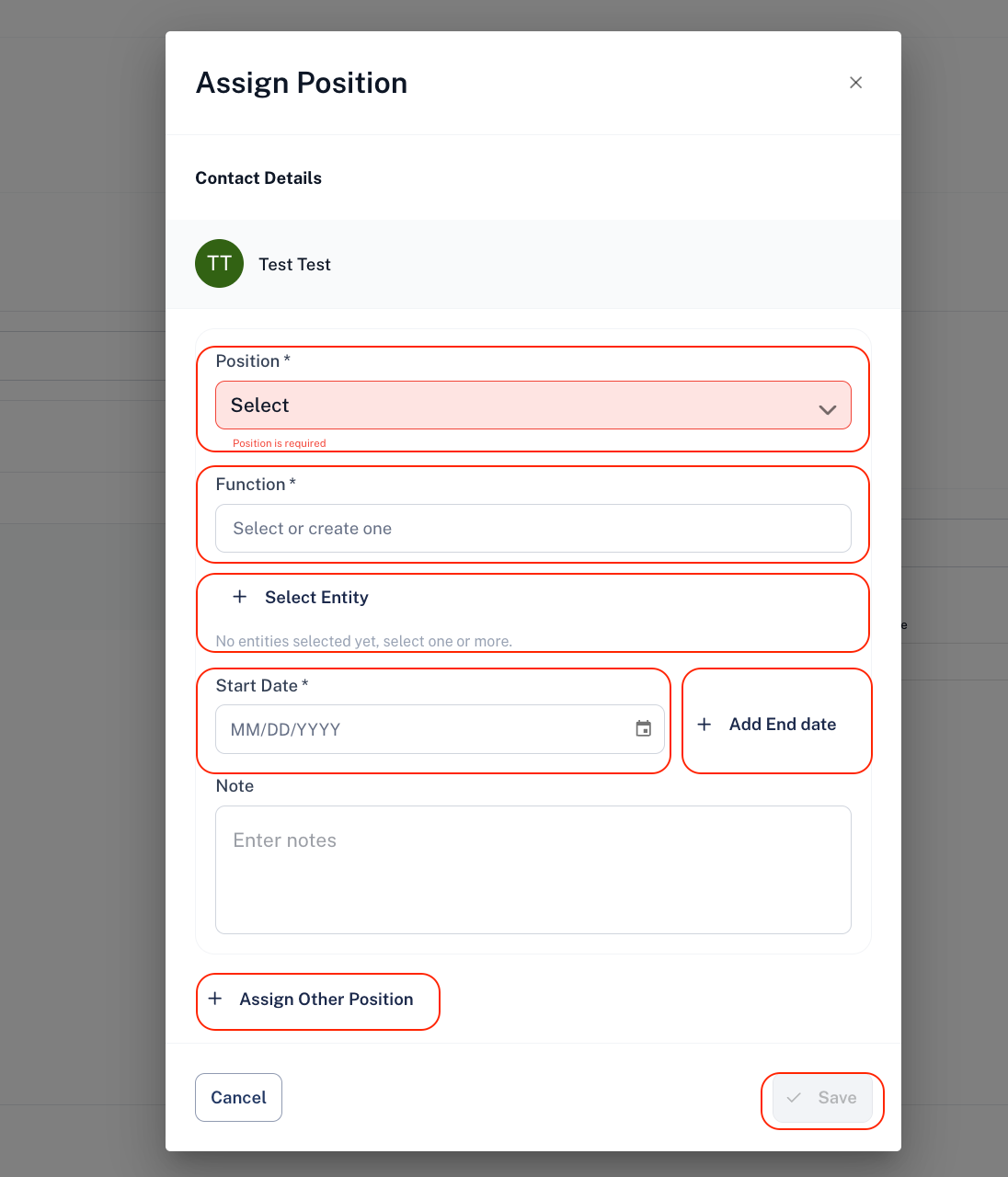
Click Assign Position to add a new role.
Step 5: Select a position, function, and entity. The same role can be added across multiple entities
Step 6: Enter a Start Date (and optional End Date).
Step 7: Add any optional notes.
Step 8: To add more roles, click Assign Other Position.
Step 9: Assign other positions if needed.
Step 10: Click Save to finish.
Manage a Position
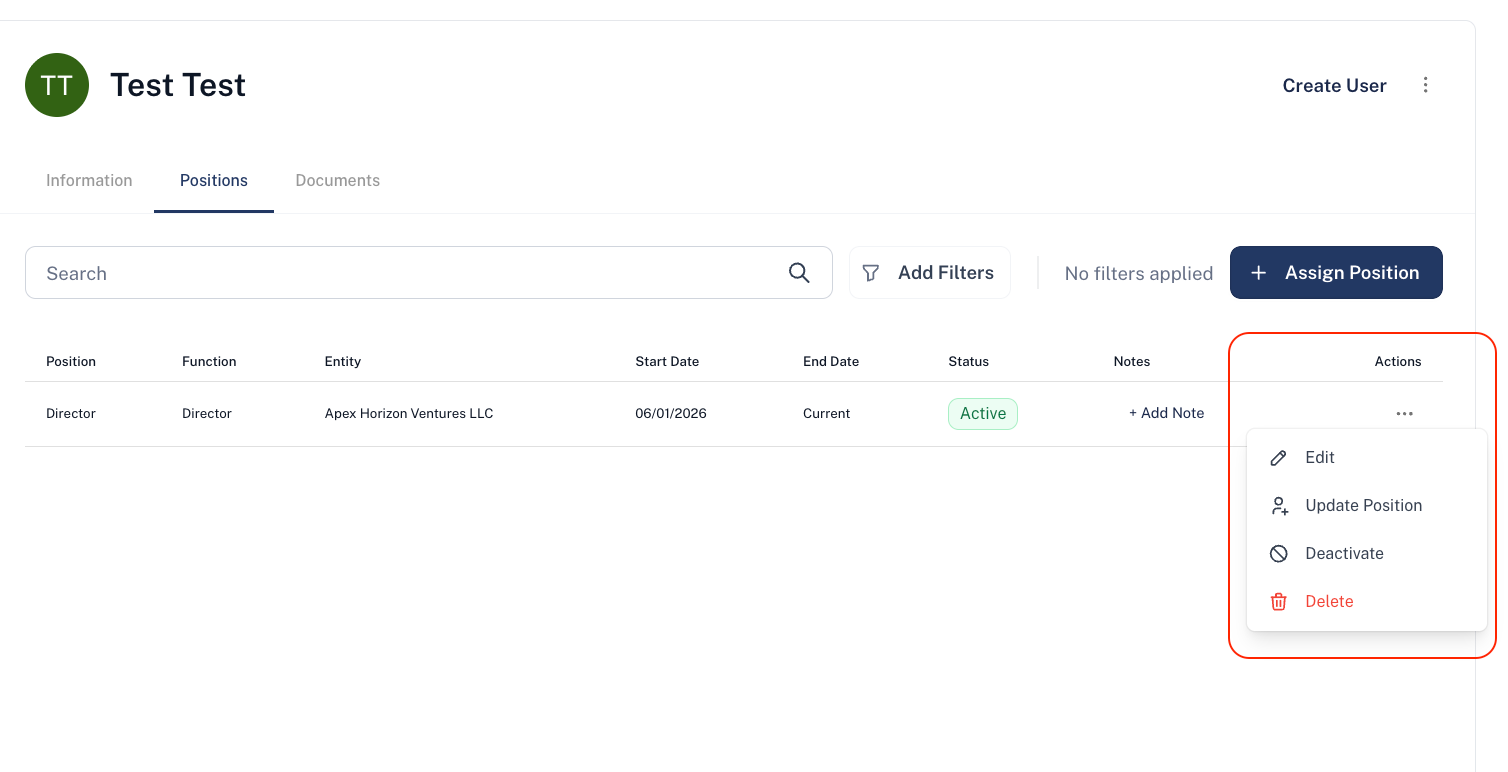
Step 11: Go to Actions and click the three-dot menu next to a position to:
- Edit – Update role details.
- Update Position – Change position specifications.
- Deactivate – Mark the position as inactive.
- Delete – Permanently remove the position.
Finding a Contact Inside an Entity
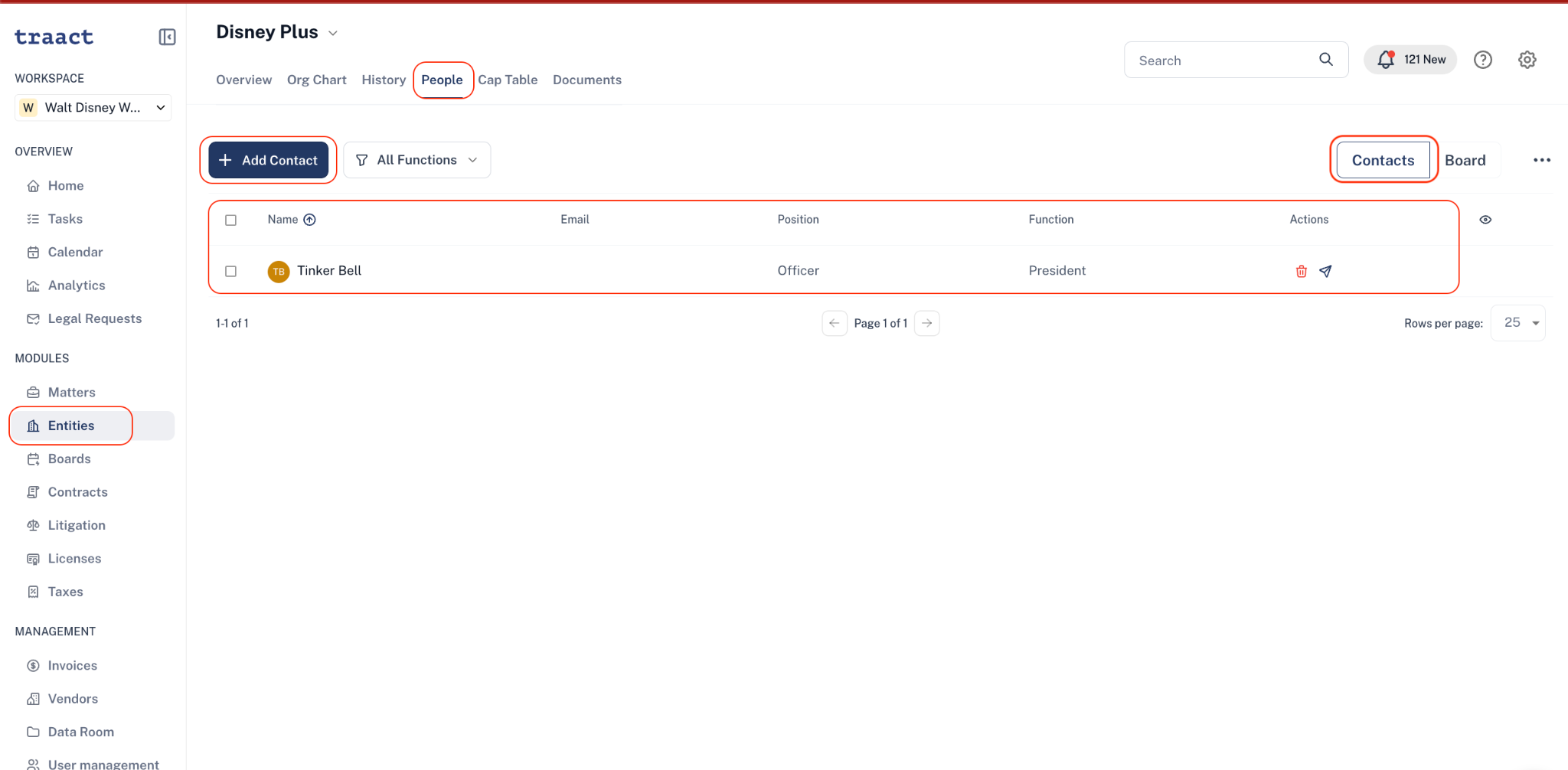
A Contact can also be found under the Entity module. Go to Entities → Choose an Entity → People to view and manage the contacts associated with that entity. Under Contact, you can:
- Add Contact – Add a new contact.
- All Functions – Filter contacts by their role.
- Contacts / Board – View contacts or board members.
- Search – Find a specific contact.
- Actions – Manage or delete a contact.
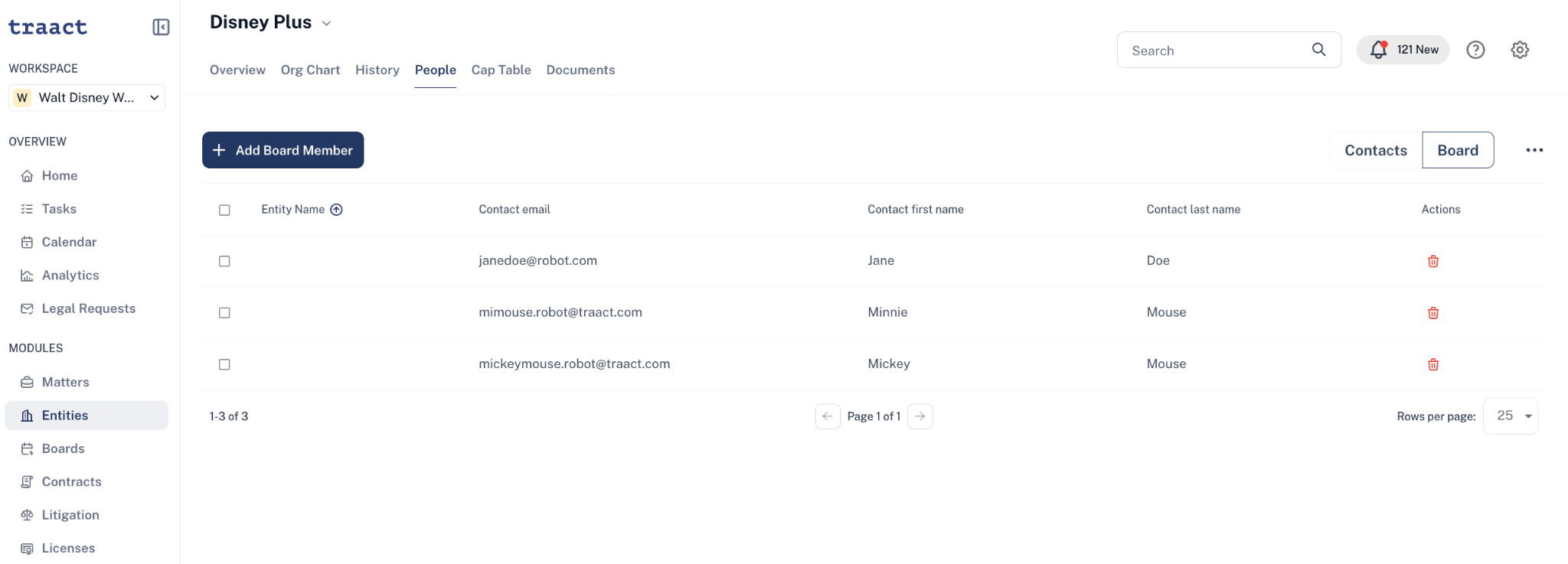
The Board section lets you view and manage the board members of the selected entity. Under Boards, you can:
- Add Board Member – Add a board member.
- Contacts / Board – Switch between contacts and board.
- Board Members List – View board members.
- Actions – Remove a board member.
Need Help?
If you have any questions or need assistance with a request, please contact your Customer Success Manager or reach out to the Traact Support team.