-1.png?width=151&height=28&name=Traact_Logo_Blue%20(1)-1.png)
What is the Difference Between a Permit and a License?
The difference between a permit and a license is that permits are the official or legal documents issued to administer safety issues. On the other hand, licenses represent permission to do or use something, and they are given more generally than permits.
Licenses and permits are both forms of official authorization, but they serve different purposes and have distinct characteristics.
The definition of a license is a formal authorization to do something that is otherwise prohibited or regulated. A permit is a document that permits you to engage in certain activities that may require oversight.
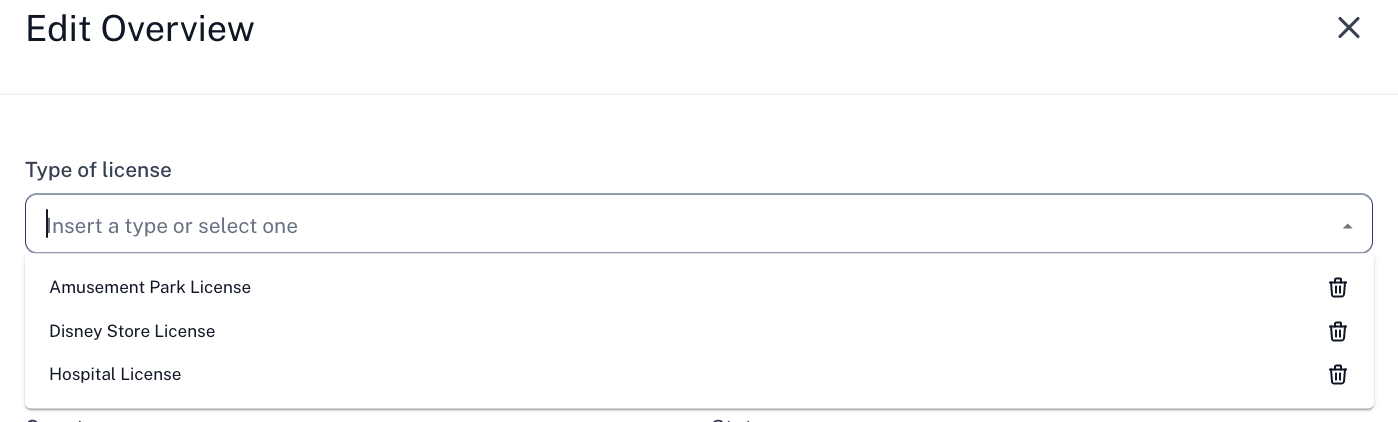
Examples of licenses types:
Business Licenses: Required to operate a business in a specific jurisdiction.
Professional Licenses: Required for certain professions (e.g., doctors, lawyers, teachers).
Driving Licenses: Allow individuals to operate vehicles legally.
Other: You can add any license type to your workspace. Once added, simply edit the license type and enter your preferred name to create a new one.
Types of Permits:
Building Permits: Required for construction or major renovations to ensure compliance with local codes.
Environmental Permits: These are needed for activities that may impact the environment, like waste disposal.
Event Permits: Required for hosting public events (e.g., festivals, concerts).
Understanding the differences between licenses and permits is essential for compliance and operational success. Both are crucial for legal operations but cater to different needs within regulatory frameworks.
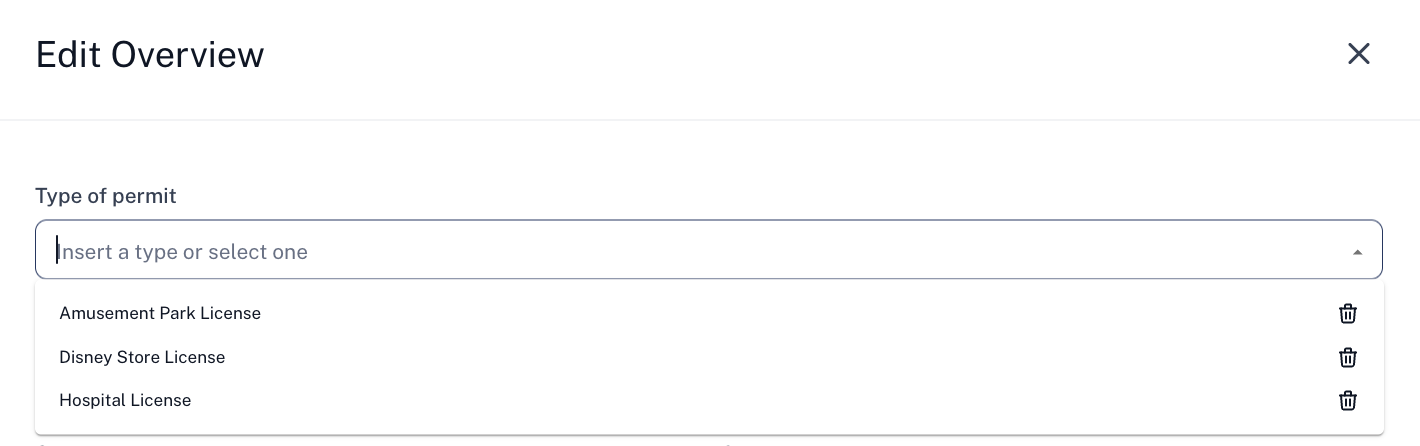
Other: You can add any permit type to your workspace. Once added, simply edit the permit type and enter your preferred name to create a new one.
How to Add A License or Permit
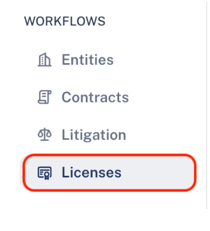
Step 1: Go to "Licenses" on the left sidebar
Step 2: Click on "Add New"
Step 3: Add and edit the license or permit details
Step 4: Assign collaborators, specify the entity, tags, reminders, license holders, and much more.
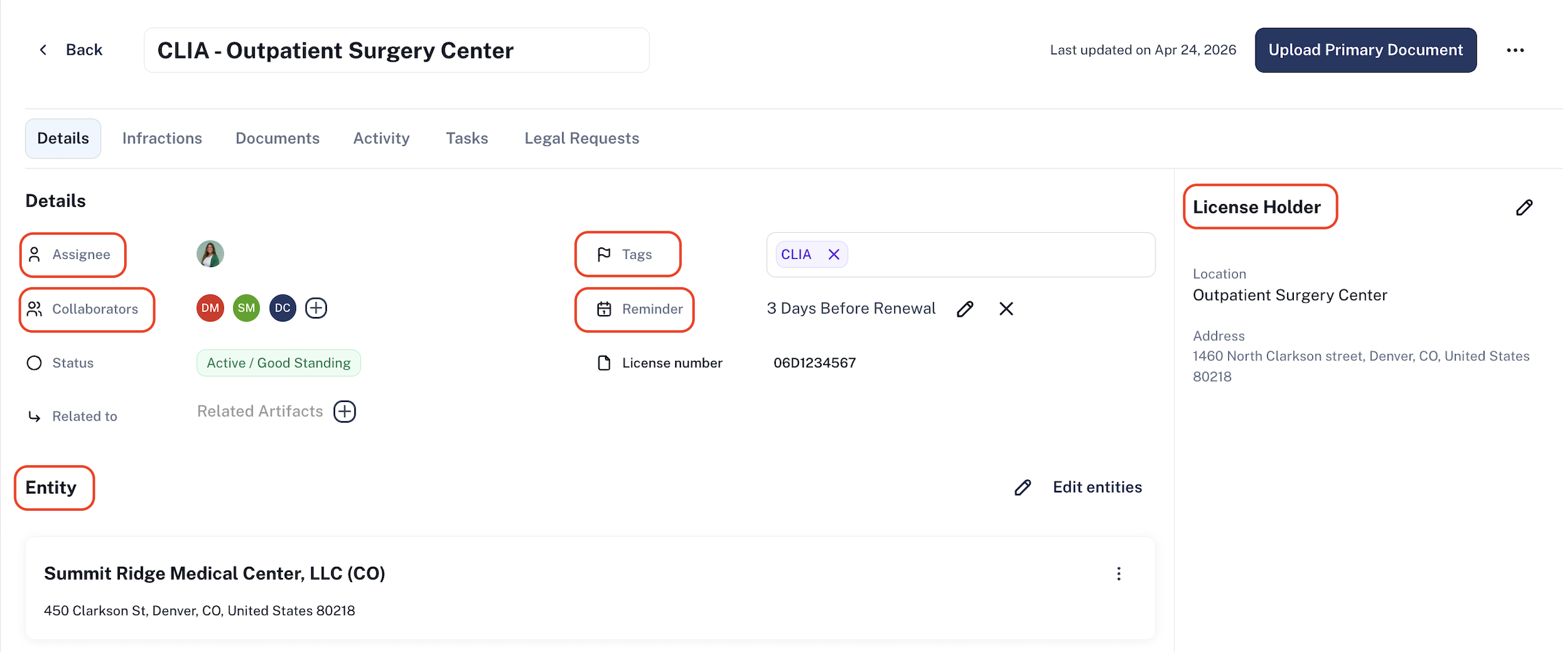
Step 5: Fill out the mandatory fields below;
Type of License: (e.g., Business License, Professional License, Driving License)
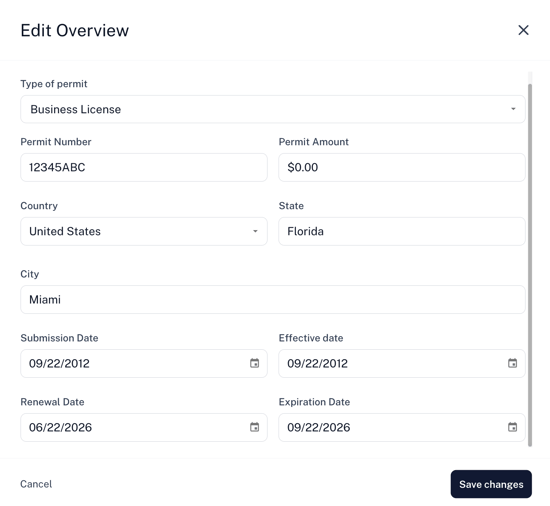
Note: The dates entered in the Submission Date, Effective Date, Renewal Date, and Expiration Date will trigger the status updates on the License Overview Page.
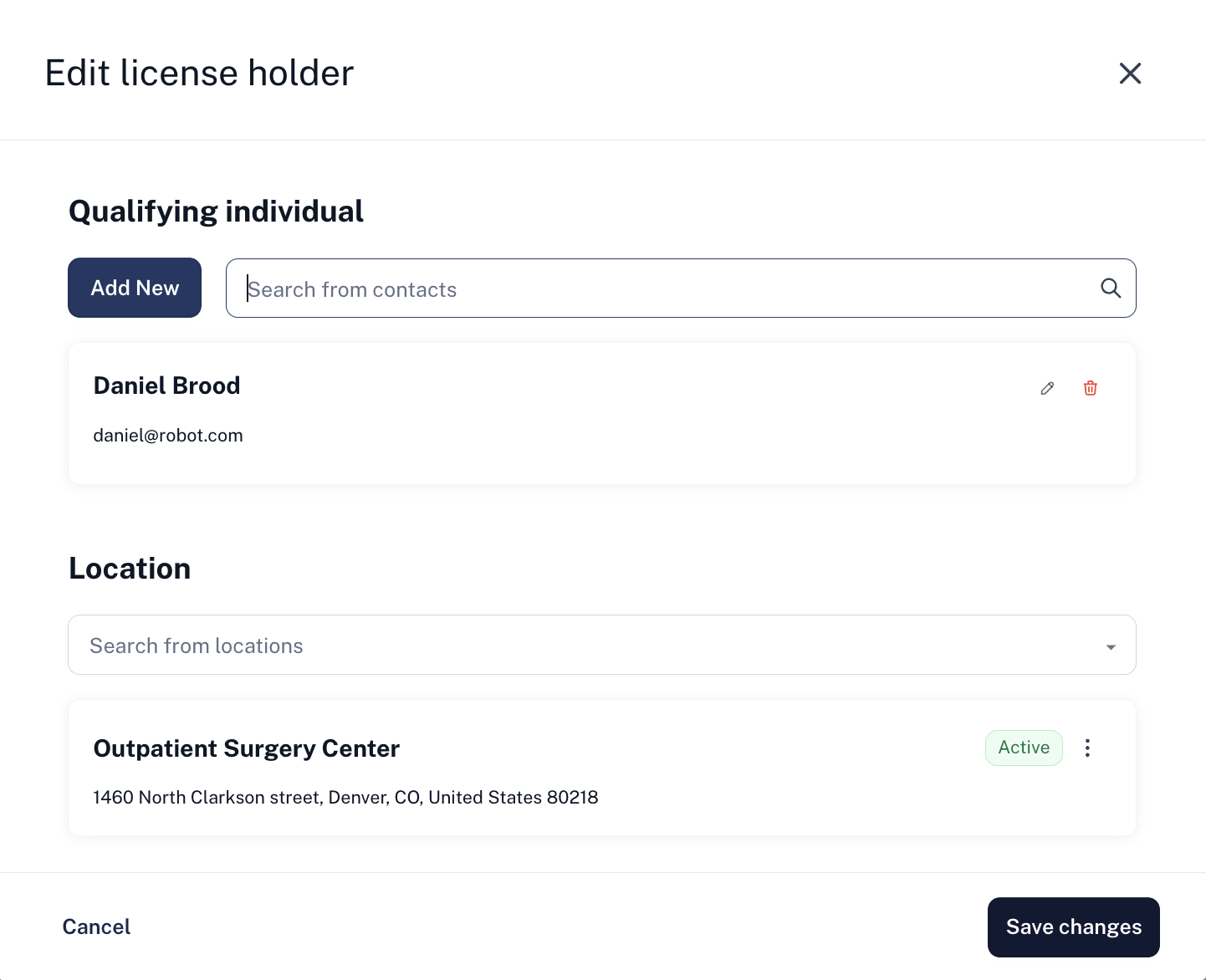
Step 6: Add Qualifying Individual:
-
To add an existing contact as a qualifying individual, click on "Select Existing", add the selected individual;
-
To add a new individual who isn’t a contact on Traact, click on "Add New" and fill out the text fields desired, and click save;
-
Choose the proper location from the available options. Click on the button "Save Changes" to save the license holder details.

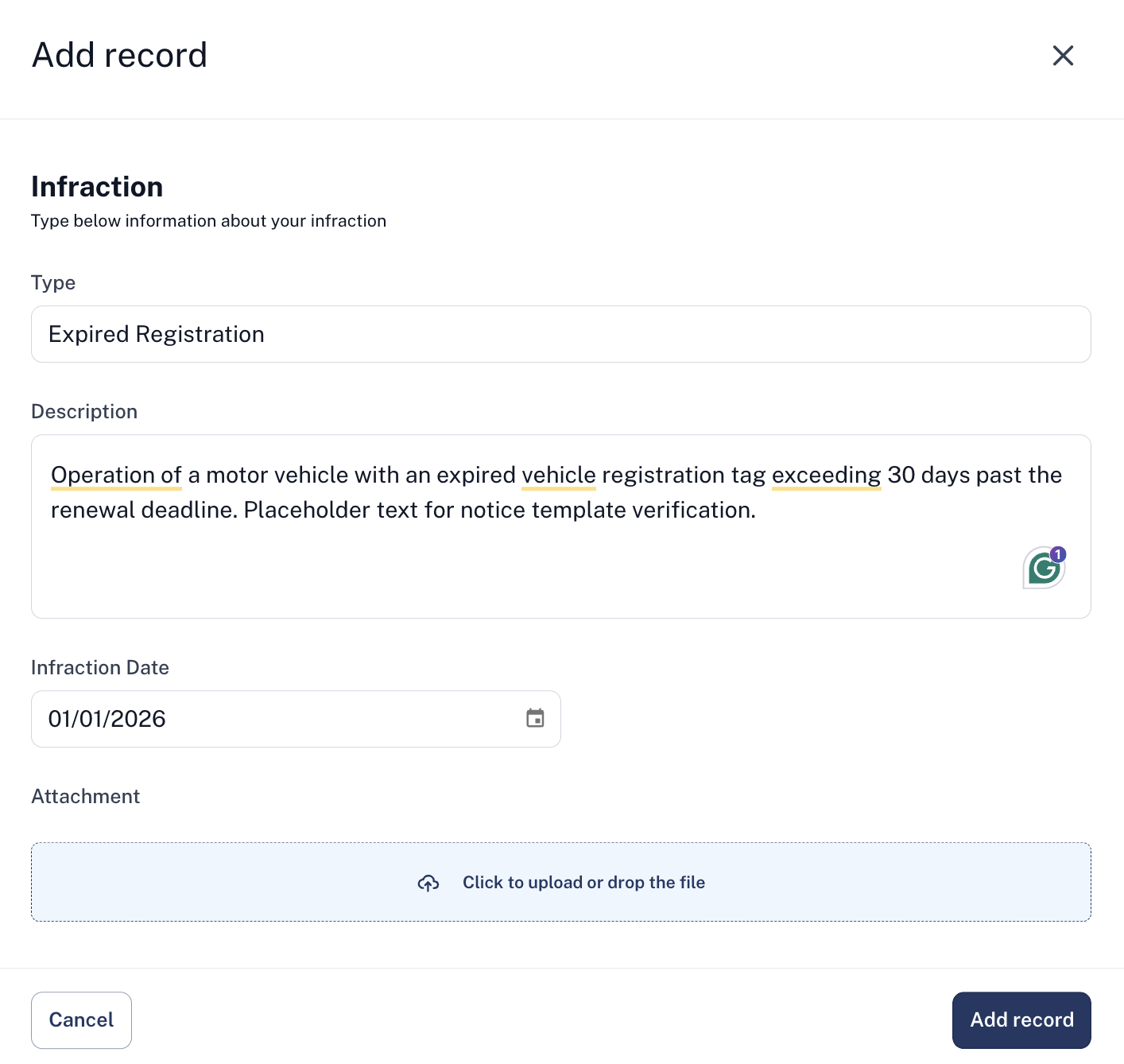
Step 7: Add Infraction Details , f any. To add an infraction related to this license: Infraction Type: (e.g., Violation, Penalty, Suspension);
-
Description: text area for detailed information;
-
Attachment: upload the file. Click on the button "Add Record" to save the infraction details;
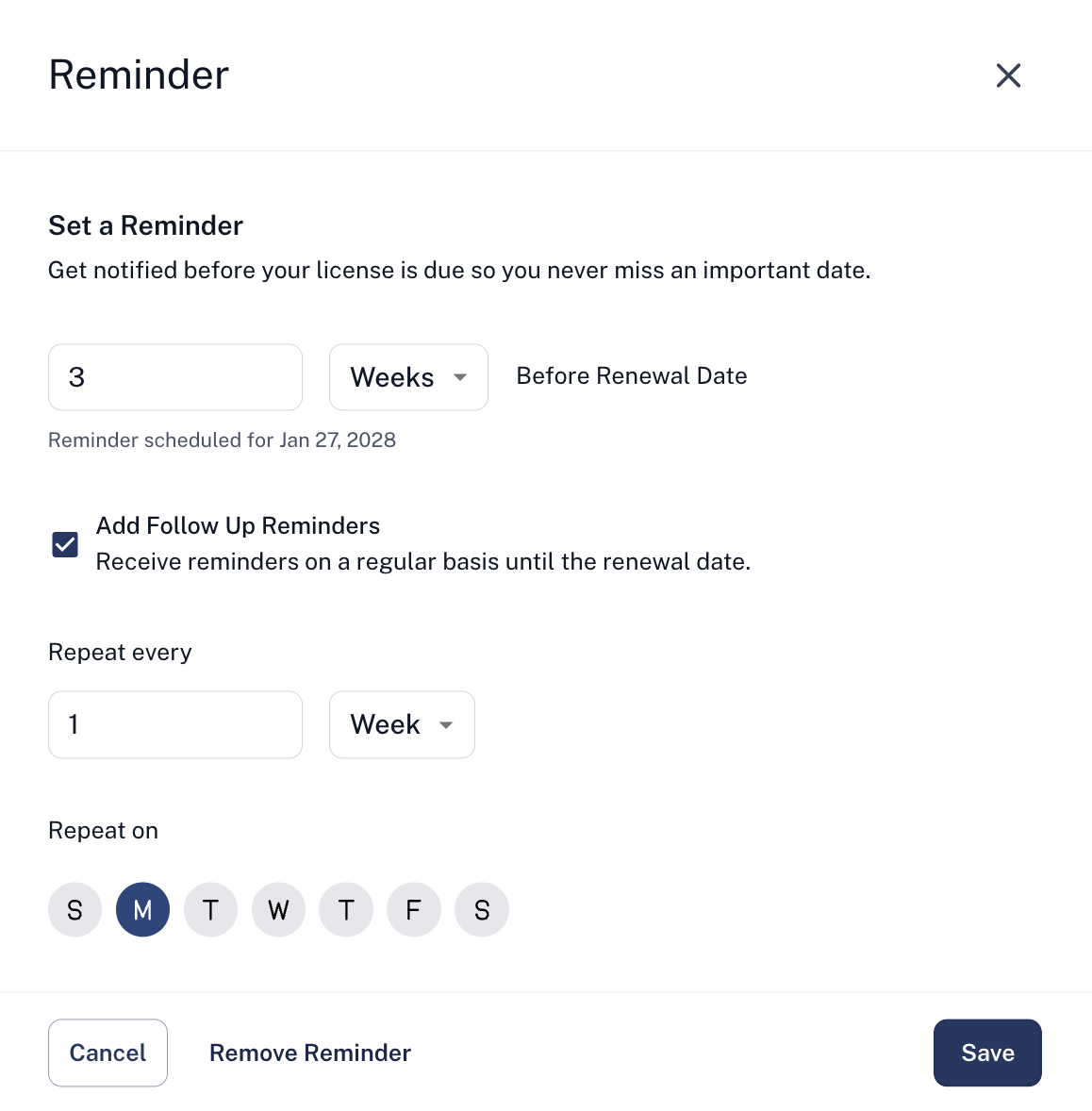
Set License Renewal Reminders
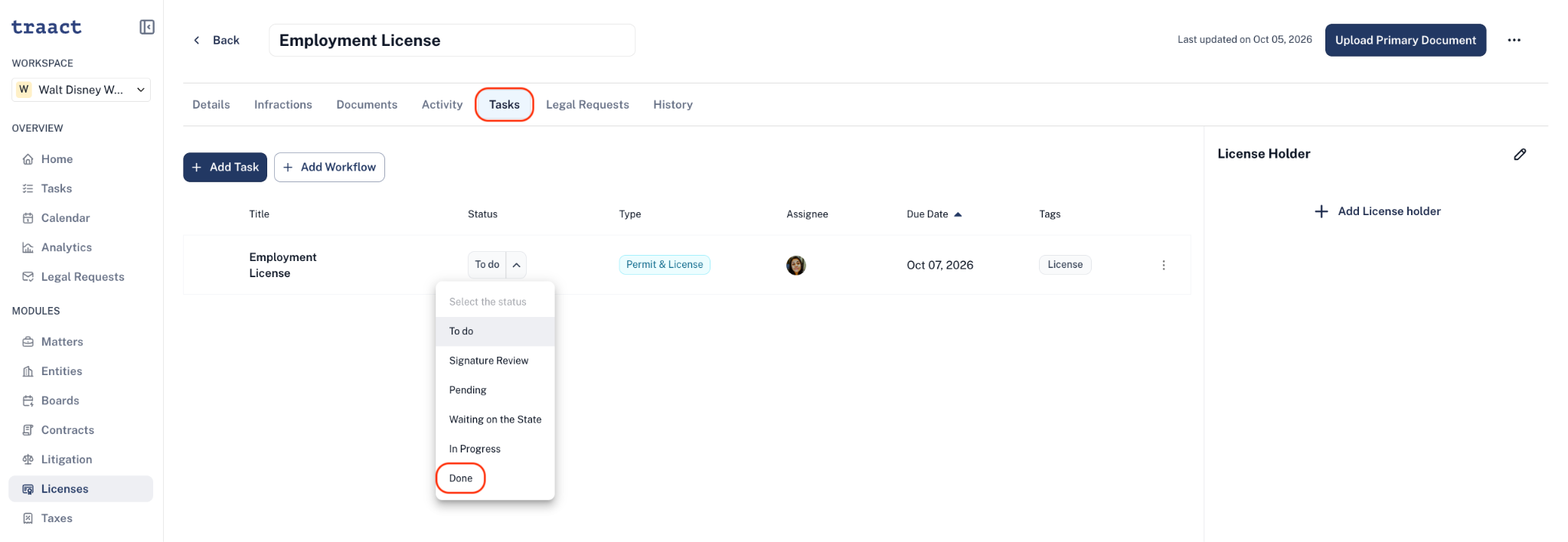
Set reminders for License renewal dates that automatically create a task within your workspace and send email/notification reminders on a set schedule until the task is marked done.
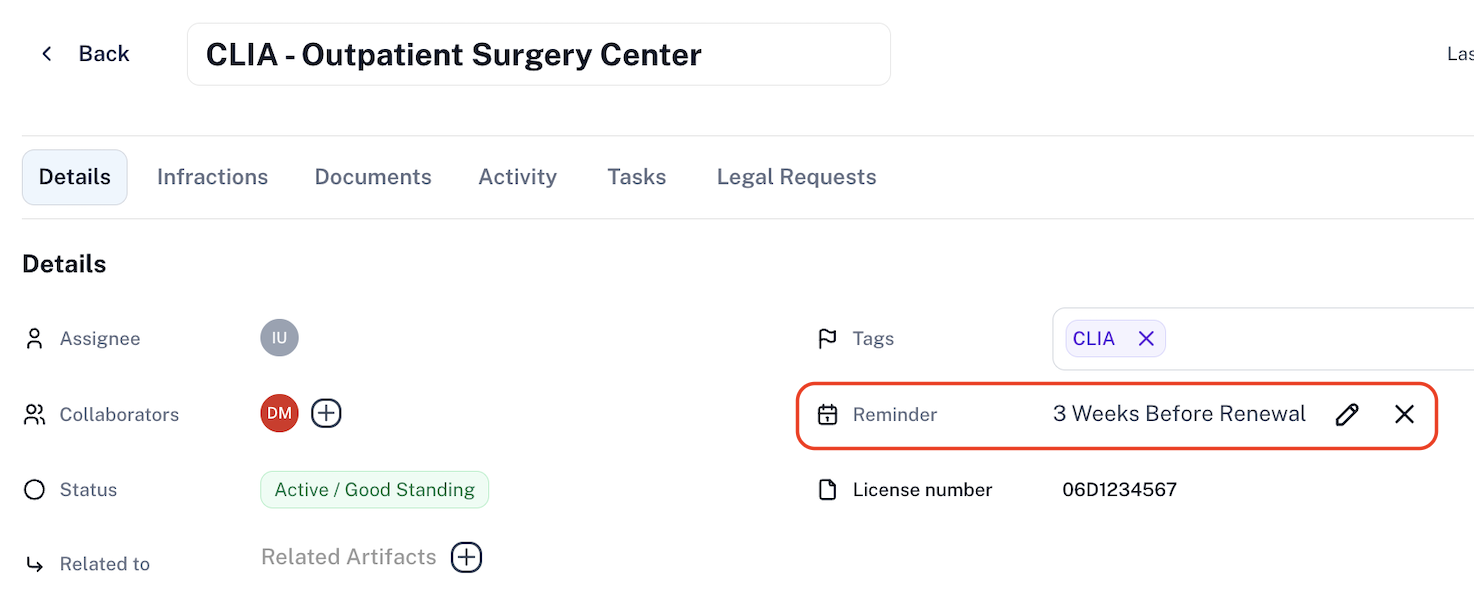
By setting a Renewal Reminder for 10 days before Renewal, a task will be created 10 days before the License Renewal date, and a reminder email and/or notification will be sent to the task assignee on Mondays, Wednesdays, and Fridays until the task is marked done.
Add Custom Fields to Your Licenses
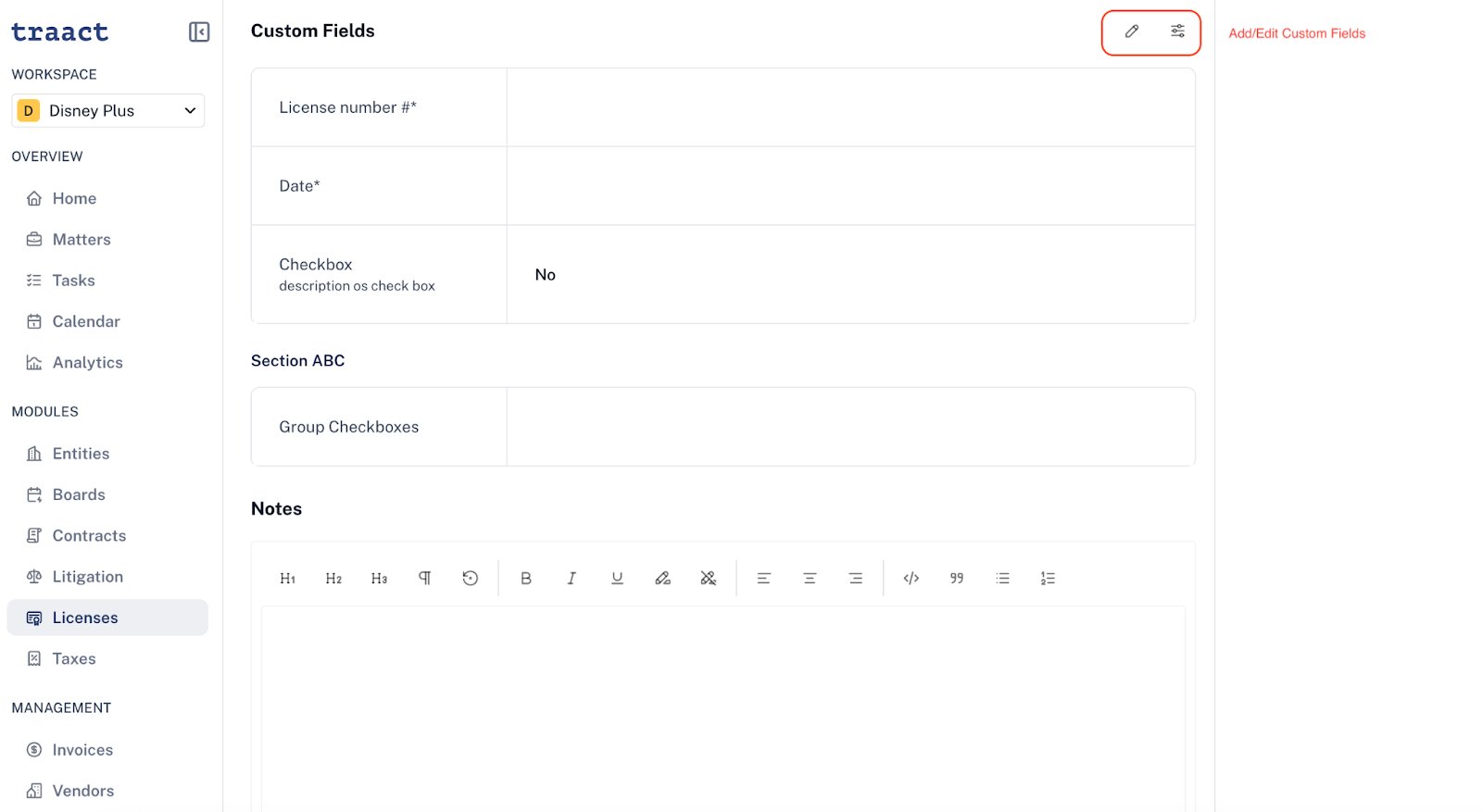
Step 1: Within the custom fields section on a License, select the pencil icon to add/edit values or the settings icon to add/edit custom fields themselves.
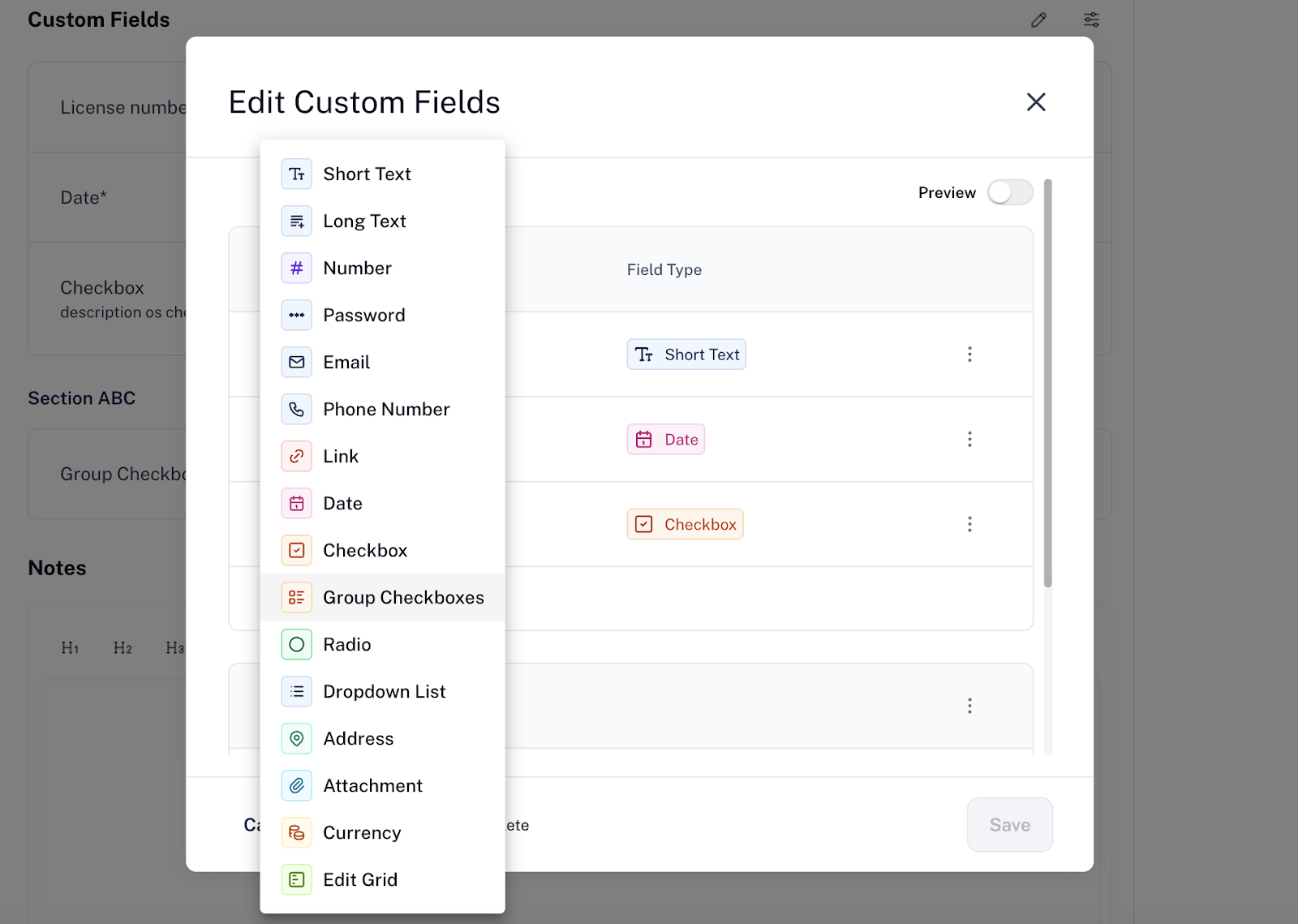
Step 2: Select the custom field type you’d like to use and customize the details to your preferences.
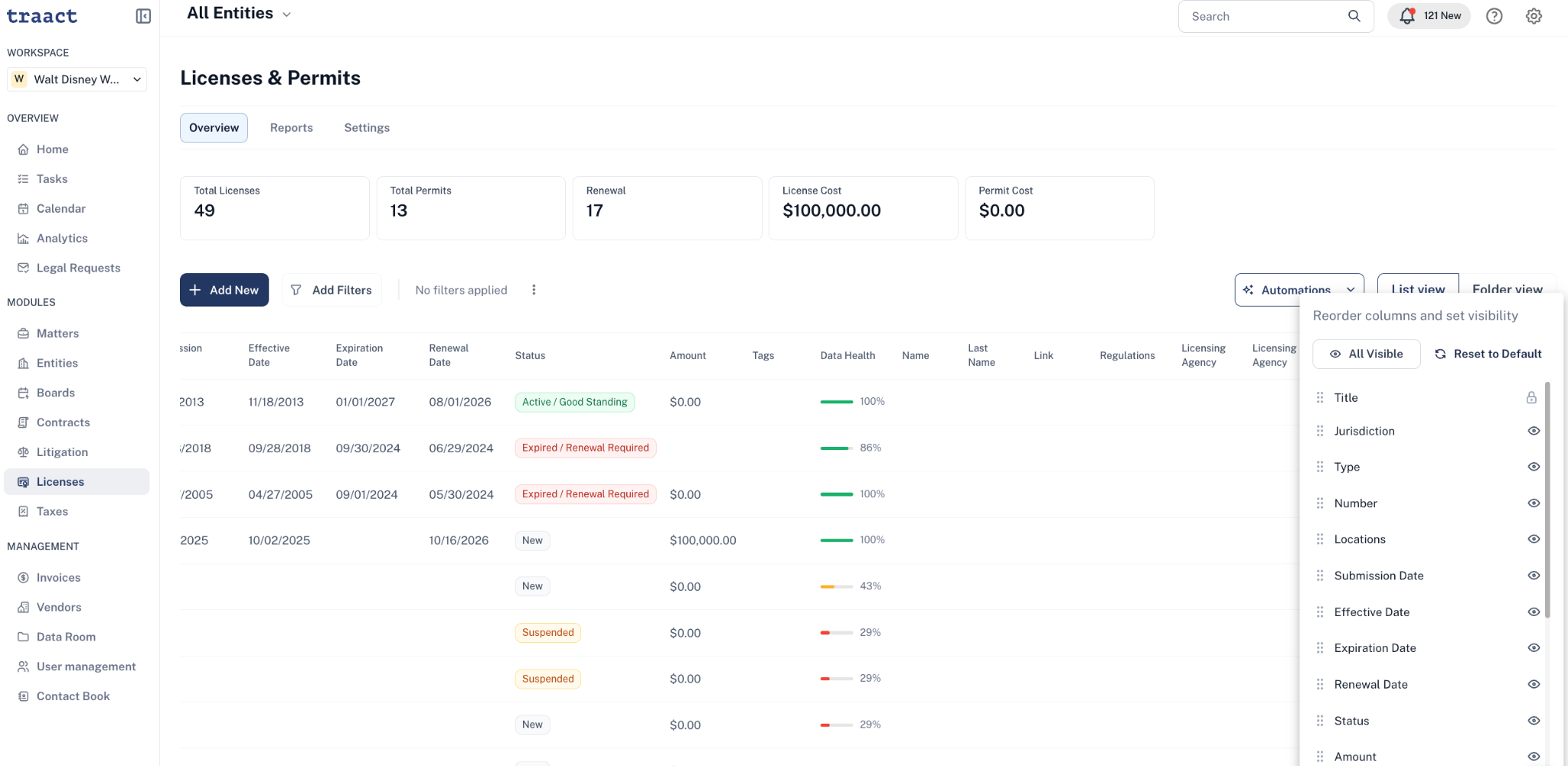
Step 3: Track your custom fields on the main License page by selecting the eye icon on the right side of the table and selecting which fields you’d like to see.
How to Bulk Edit Licenses
Managing multiple licenses one by one can be time-consuming.
With Traact’s Bulk Edit feature, you can update many licenses at once — saving time and keeping your workflows organized.
Step 1: Select Licenses
-
Go to your Licenses Module and select either all licenses or just the ones you want to update.
Step 2: Open Bulk Edit
-
Once Licenses are selected, a Bulk Edit option will appear. Click it to continue.
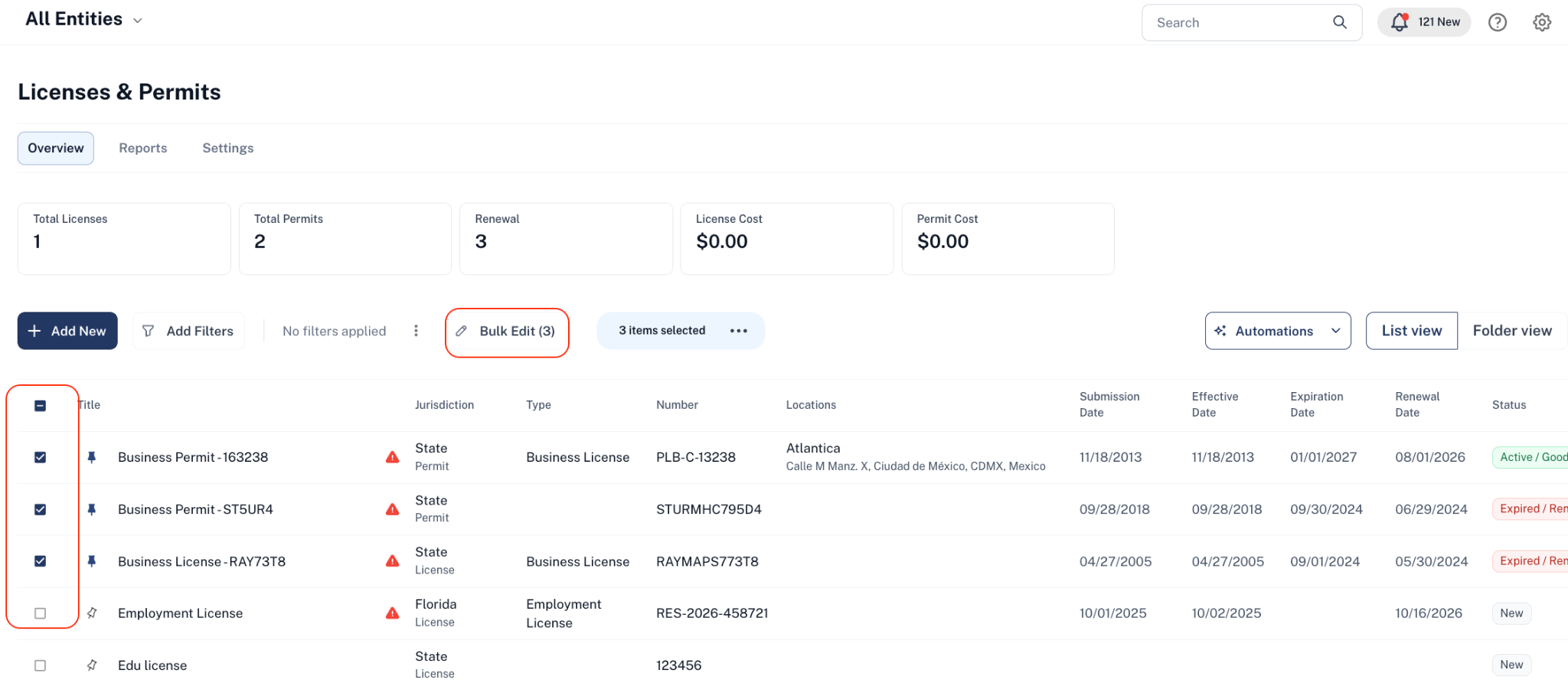
Step 3: Choose What to Update
-
Select the fields you’d like to update for all Licenses. You can modify:
-
Assignees
-
Collaborators
-
Tags
-
Entities
-
Branches
-
Qualifying Individuals
-
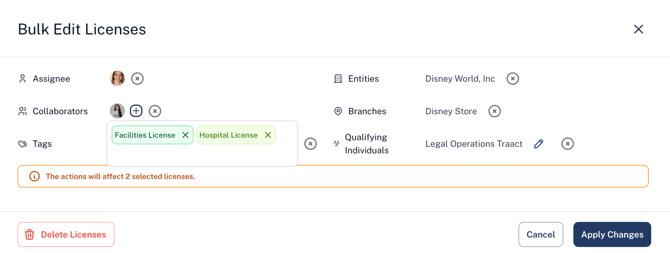
Step 4: Apply the Changes
-
Click Apply Changes to update all selected tasks at once.
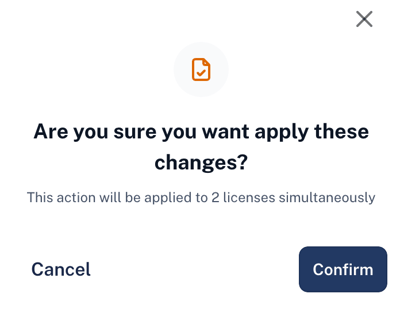
That’s it — your updates are applied instantly, helping you stay efficient and organized.
Communication via the Activity Tab
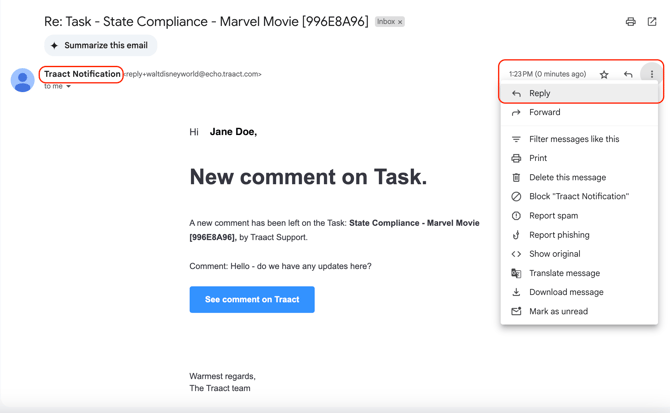
The Activity tab serves as a central hub for internal communication between Traact users across all modules. When a message is posted in the Activity tab, an email notification from "Traact Notification" is automatically sent to all assignees and collaborators tagged in the relevant artifact, task, or matter.
To respond, you can simply reply to the email notification, and your response will be recorded directly in the Activity tab within Traact. Alternatively, you have the option to reply directly within the Activity tab if preferred.
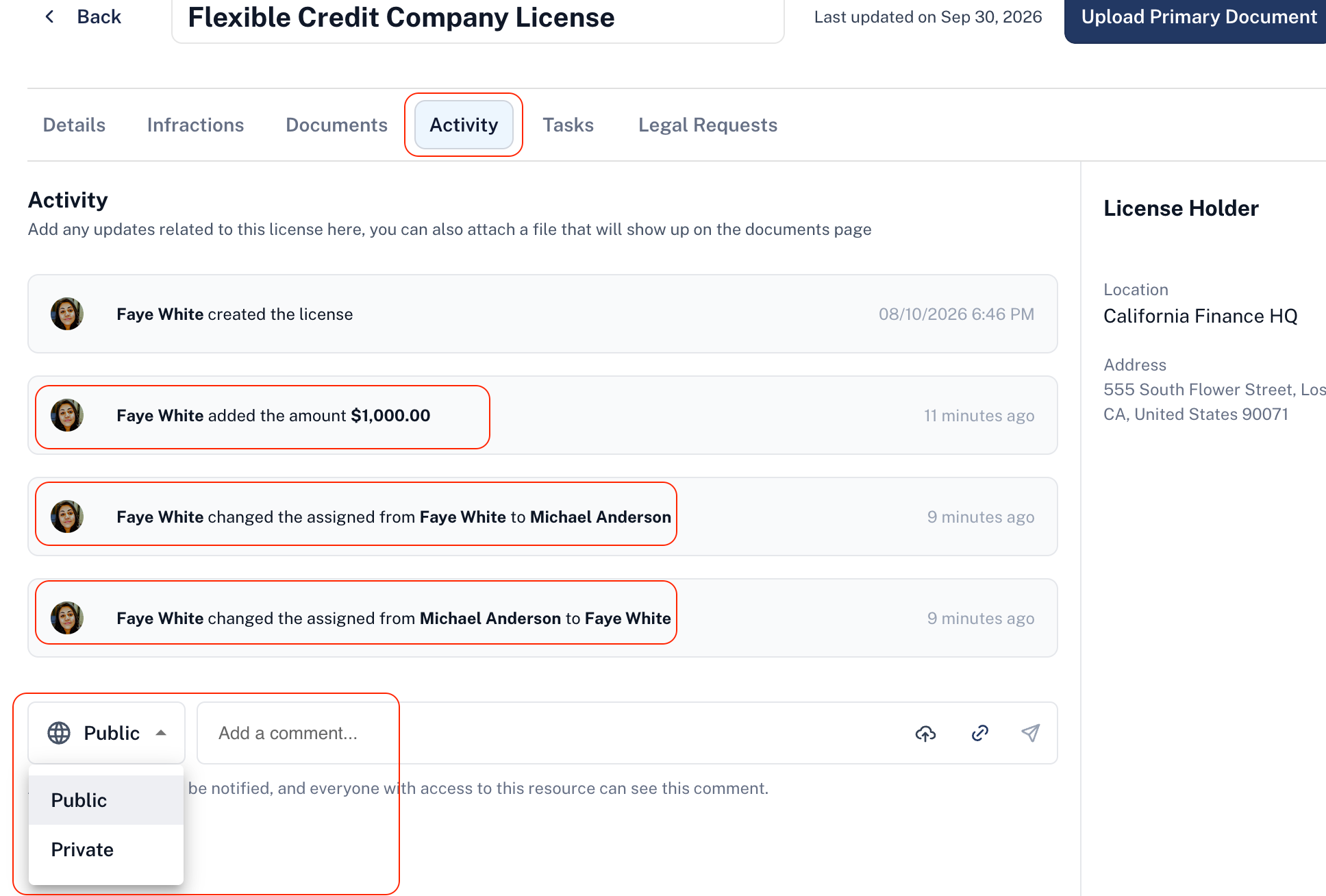
It aslo functions as a log for tracking modifications to license records. It provides complete visibility into modified details, additions, or removals alongside corresponding timestamps. Additionally, you can control visibility settings for this activity log by choosing between public or private options.
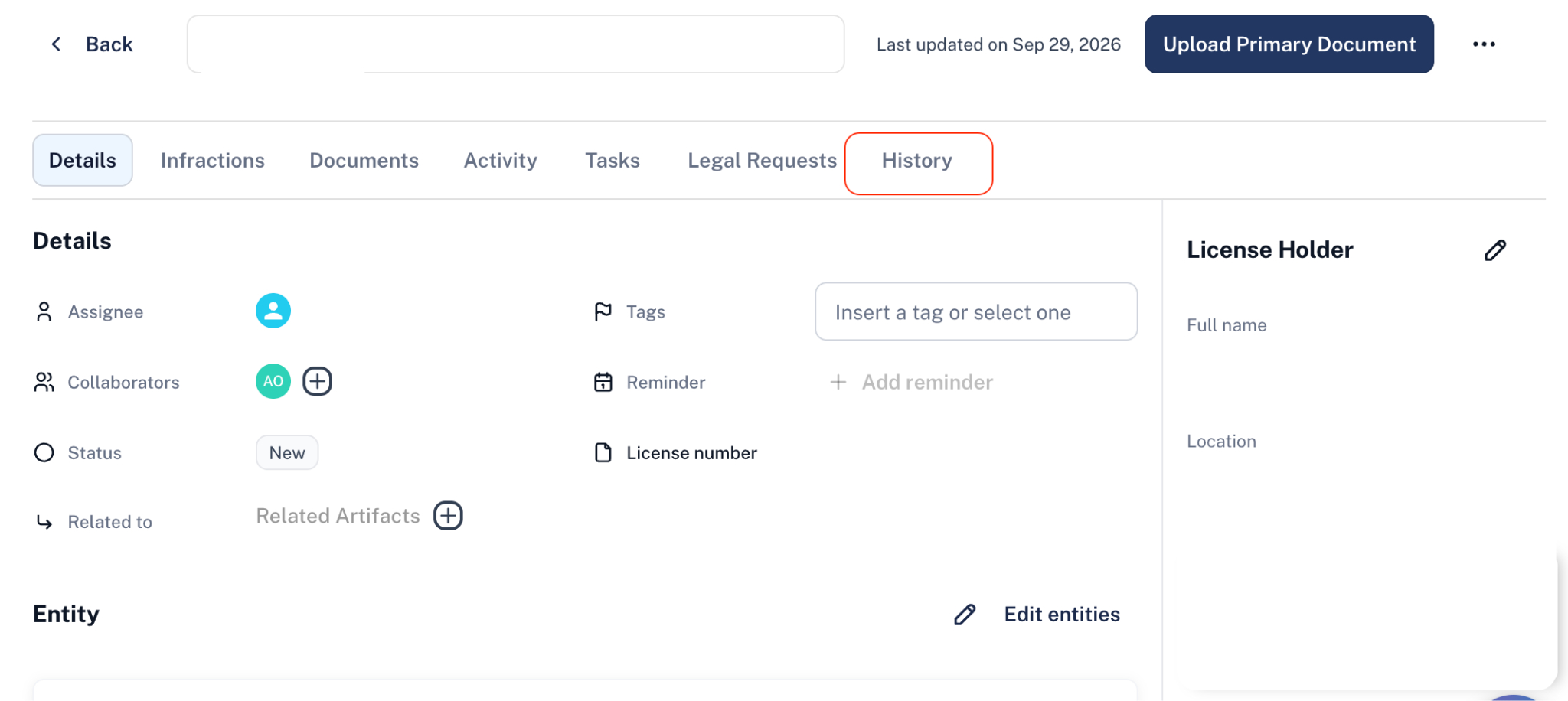
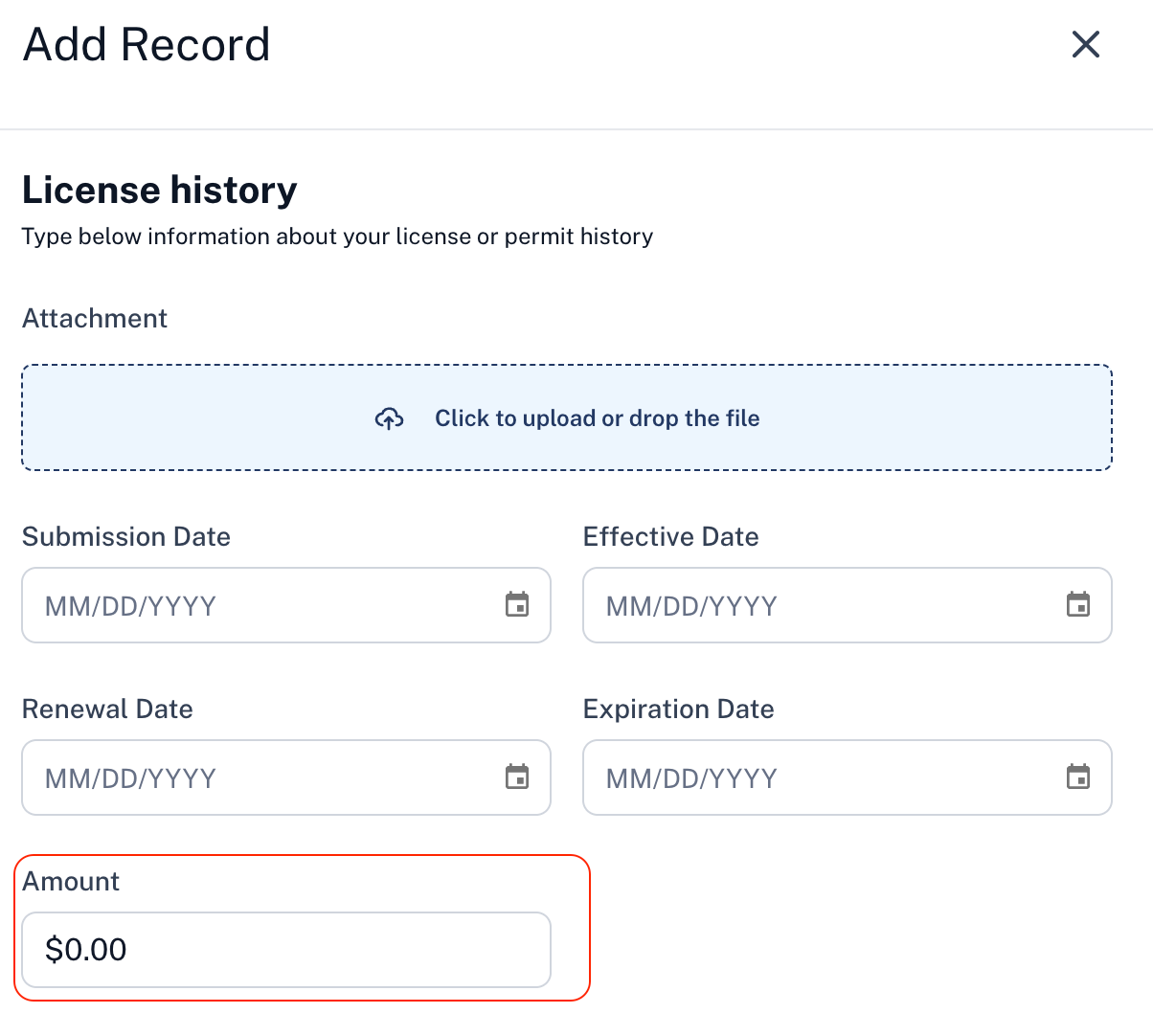
Once added, the new license will be displayed in the License History section for review. You can adjust details, including dates and amounts, before saving your updates.
Need Help?
If you have any questions or need assistance with a request, please contact your Customer Success Manager or reach out to the Traact Support team.