-1.png?width=151&height=28&name=Traact_Logo_Blue%20(1)-1.png)
Adding a Location
Follow the step-by-step instructions below to add a new location:
Step 1: Navigate to the Tasks module, then click on “Settings”.
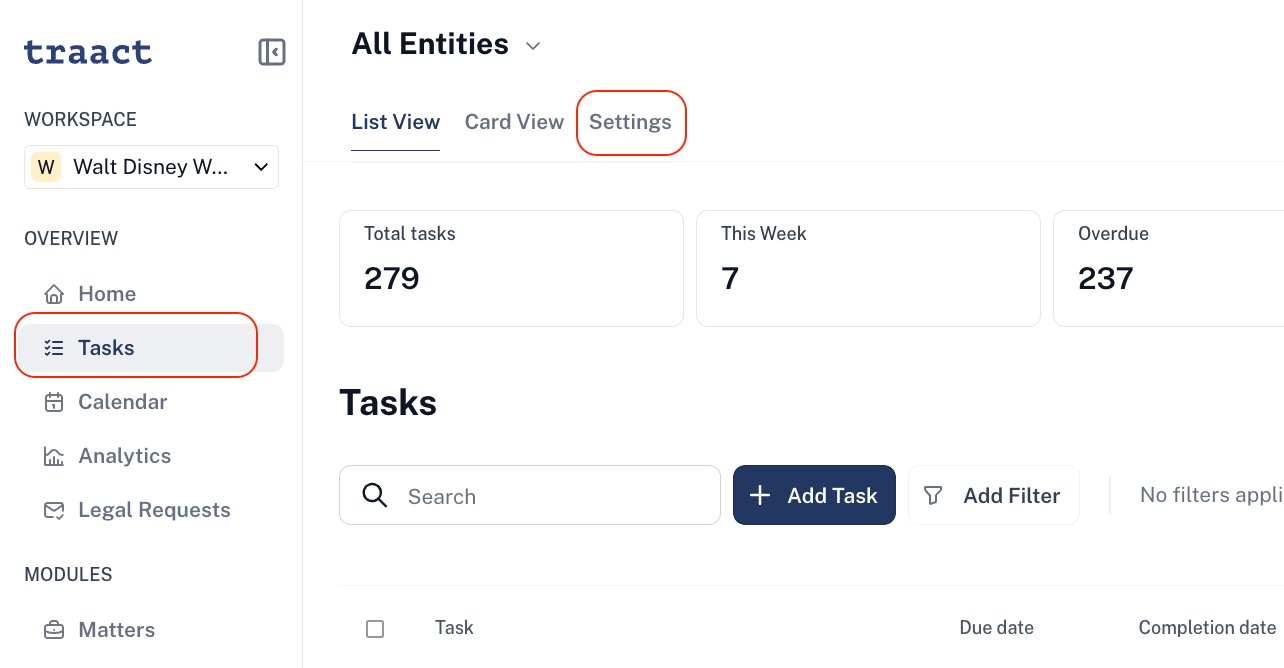
Step 2: In the Settings page, you will see a list of all existing task statuses. Click on "Edit Status".
Step 3: Enter the name of your desired custom status.
Note: The colors of preset statuses will remain unchanged. Your new custom status will automatically become the default status for all tasks and will reflect the color scheme used for preset statuses.
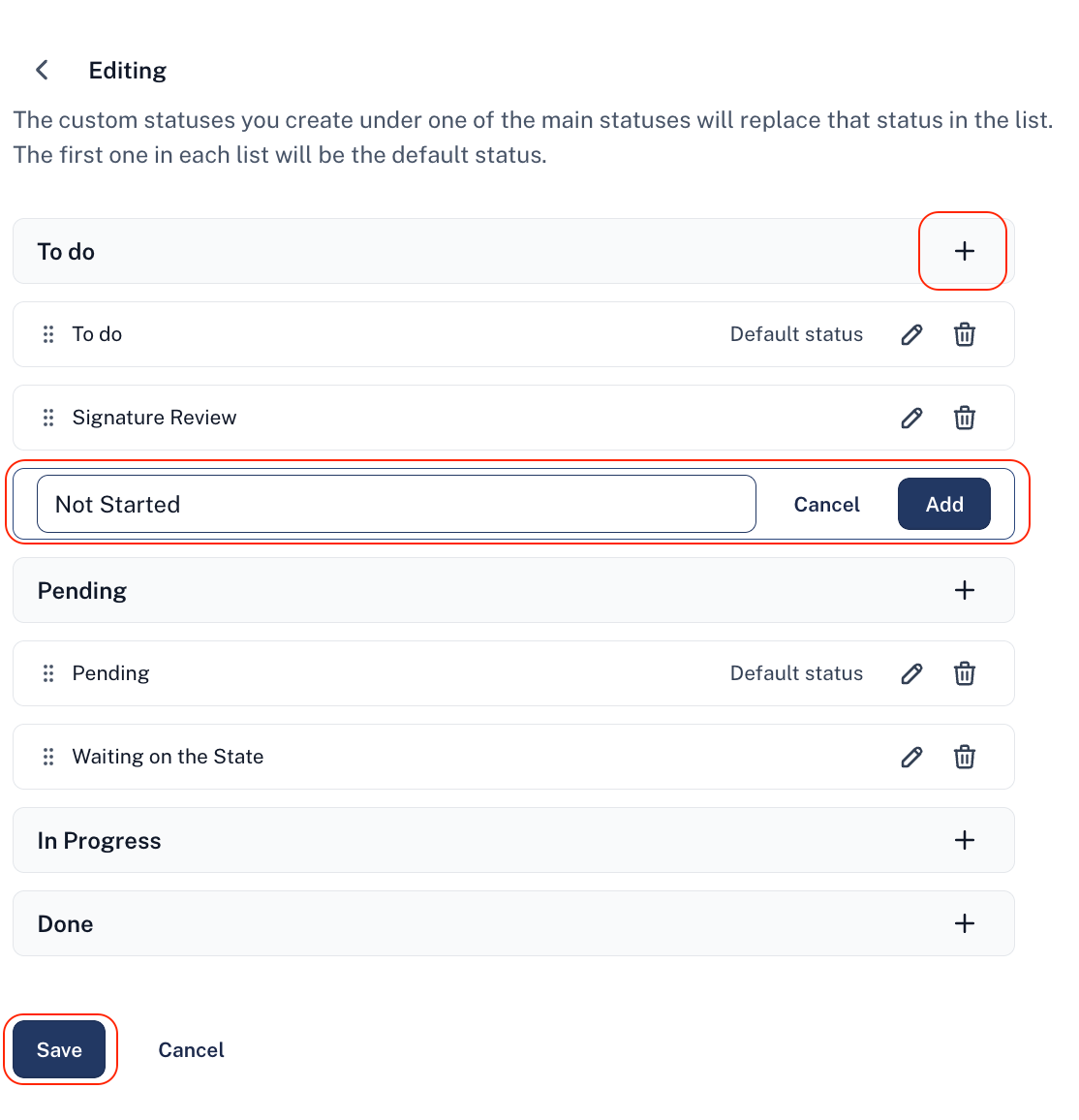
Step 4: Finally, click “Save” to apply your custom task status.
Who Can Edit Custom Task Statuses?
Only admin users have permission to manage custom task statuses. This includes the ability to add new statuses, remove existing ones, and set a default status for tasks across the platform.
Can I delete it?
Yes, custom task statuses can be deleted - but only if they are not currently in use.
If a custom status is currently in use and an admin attempts to delete it, a pop-up message will appear explaining that the status cannot be deleted while it's in use. To proceed with deletion, the custom status must first be removed from all associated tasks.
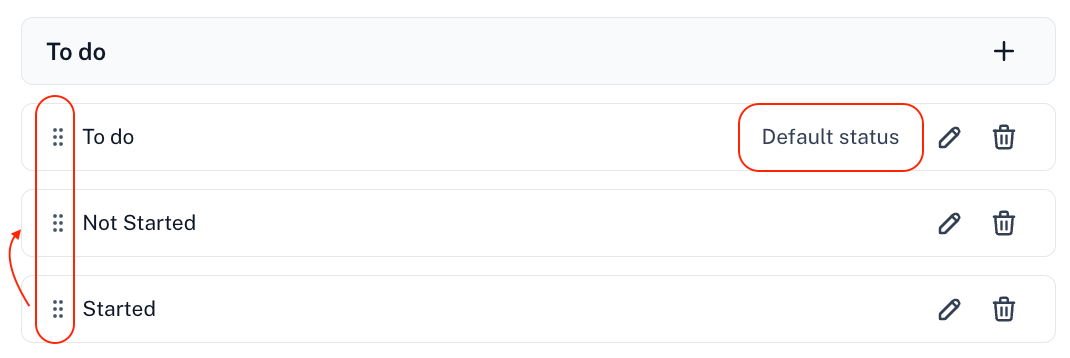
How to Set a Default Status
To make a custom status the default, simply drag it to the top of the list. A label reading "Default Status" will appear next to it to indicate its priority.
Views and Filters
Once a custom task status is created, it will be seamlessly integrated across the platform.
- Task Filters: Custom statuses will automatically appear as filter options, allowing you to easily sort and view tasks by their new status.
- List View and Card View: Both views will display tasks with the new custom status, ensuring consistency in how tasks are organized and presented throughout the platform.
Need Help?
If you have any questions or need assistance with a request, please contact your Customer Success Manager or reach out to the Traact Support team.