-1.png?width=151&height=28&name=Traact_Logo_Blue%20(1)-1.png)
Step-by-Step Guide for Adding Tags to an Entity:
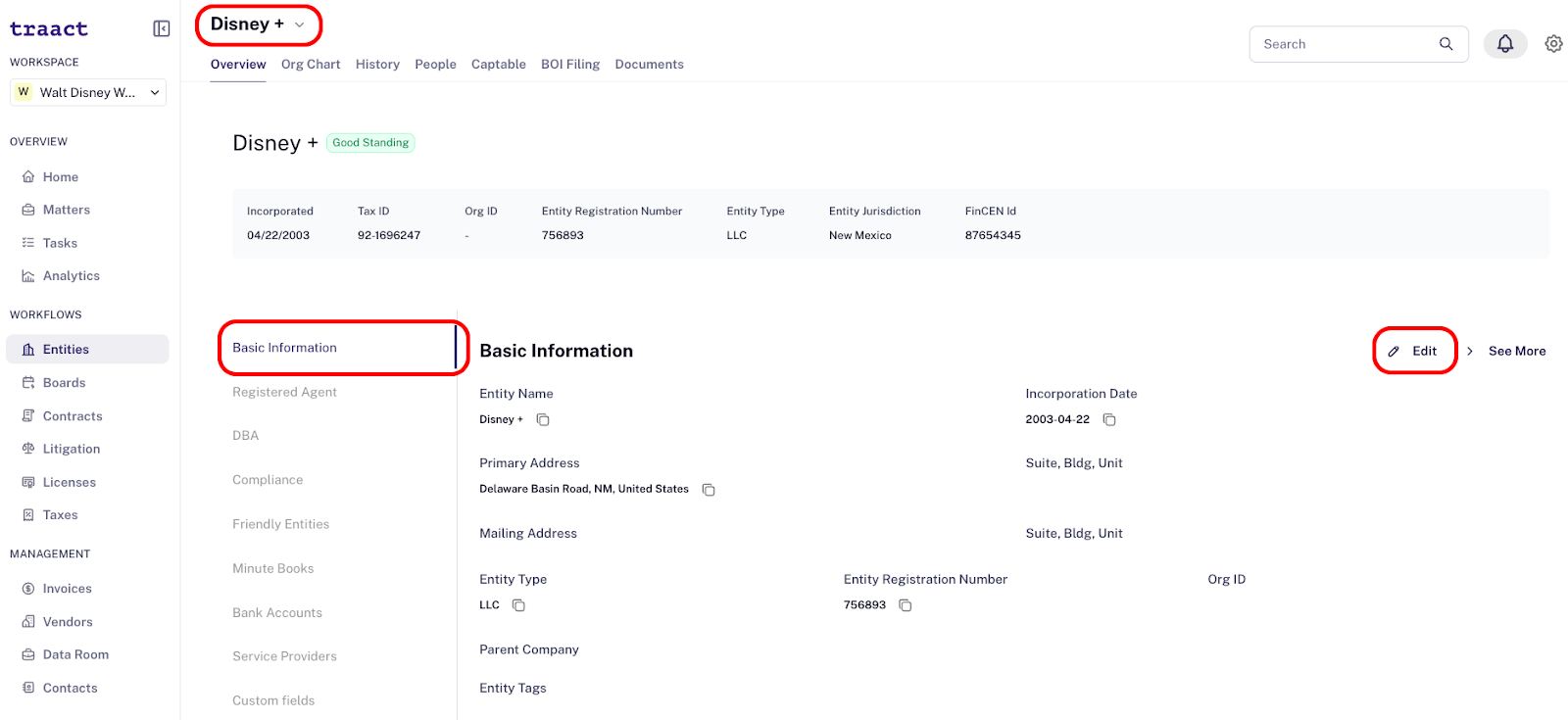
Step 1: From the main entity table, search for and select the entity to which you wish to add a tag. On the entity's overview page, click "Basic Information" and then select the edit icon;
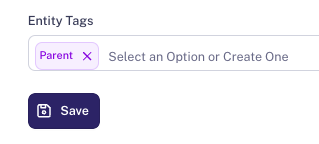
Step 2: Locate the "Entity Tags" field, enter the desired tags, and save your changes;
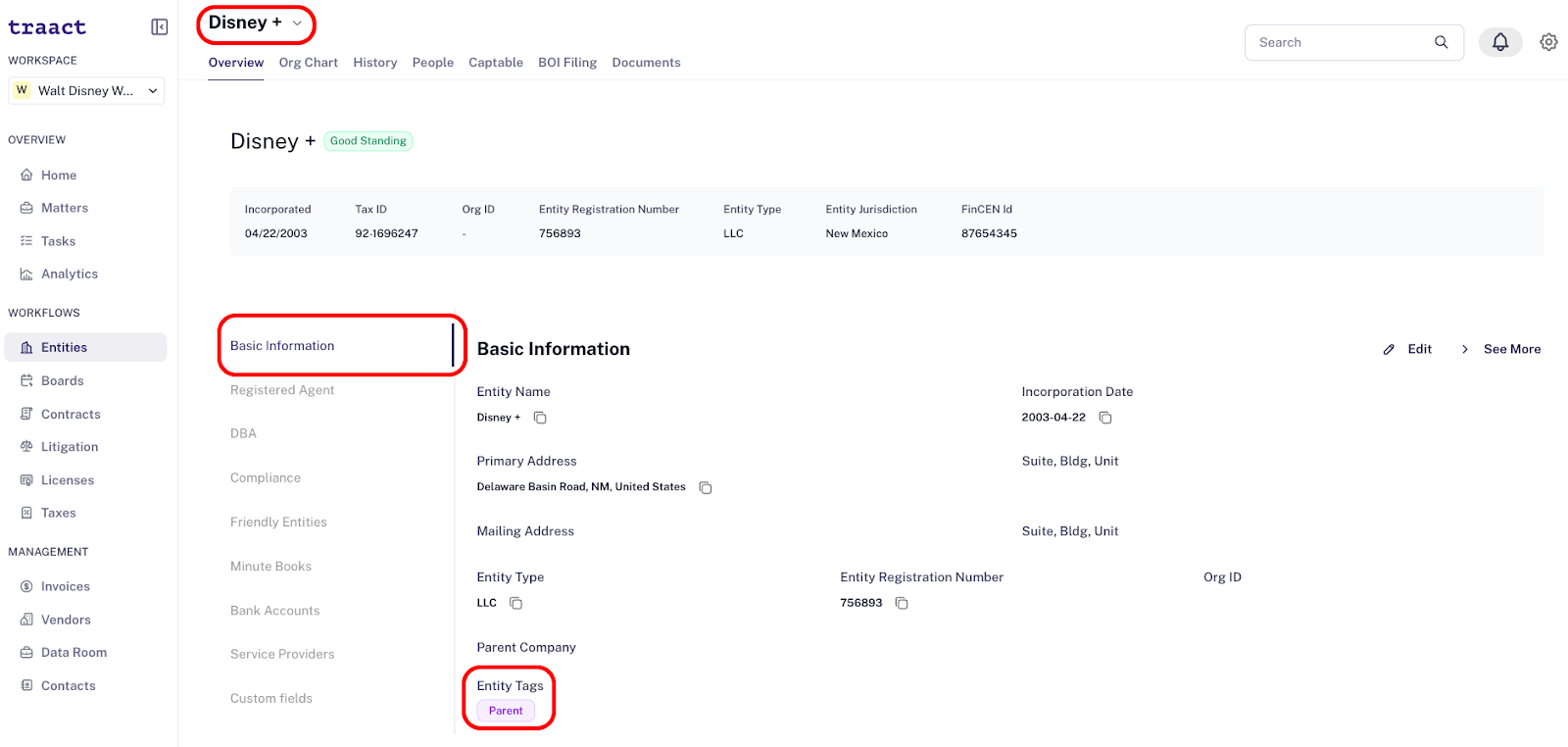
Step 3: Finally, the added tags will display on the entity's overview page and in the main entity table.
-
Entity Overview Page:
-
Main Entity Table:
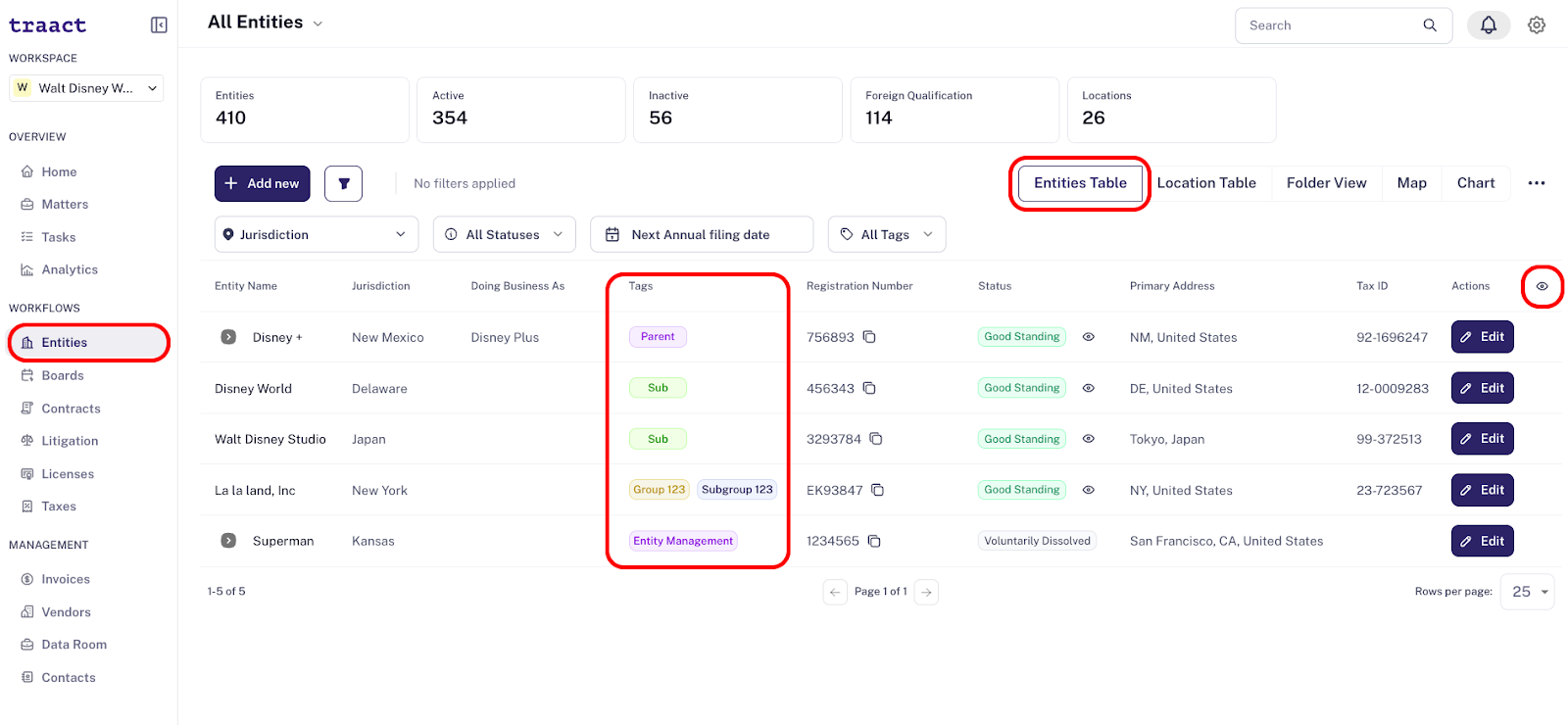
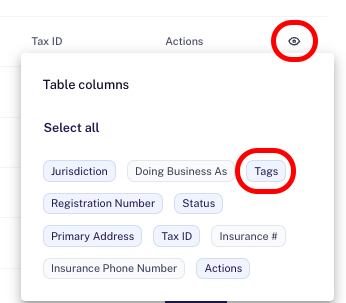
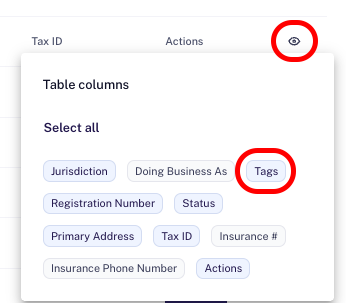
Note: If the "Tags" column is not visible on the main entity table, click on the eye icon and ensure the "Tags" column is selected for display.
Step-by-Step Guide for Adding Notes & a Shortcut for Adding Tags to an Entity
Step 1: From the main entity table, search for and select the entity to which you wish to add notes and/or a tag;
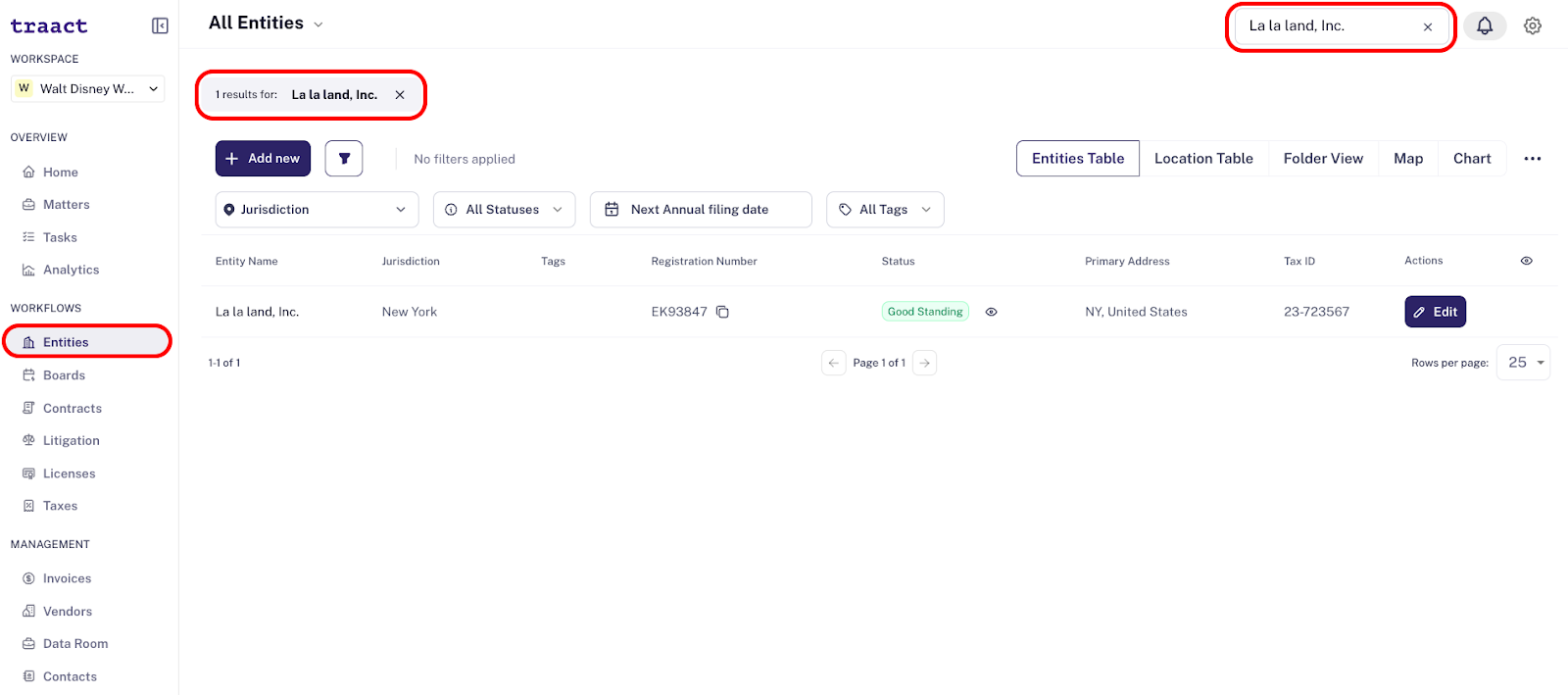
Step 2: Under the "Actions" column, click "Edit";
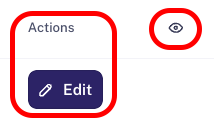
Note: If the "Actions" column is not visible, clickon the eye icon and ensure the "Actions" column is selected for display.
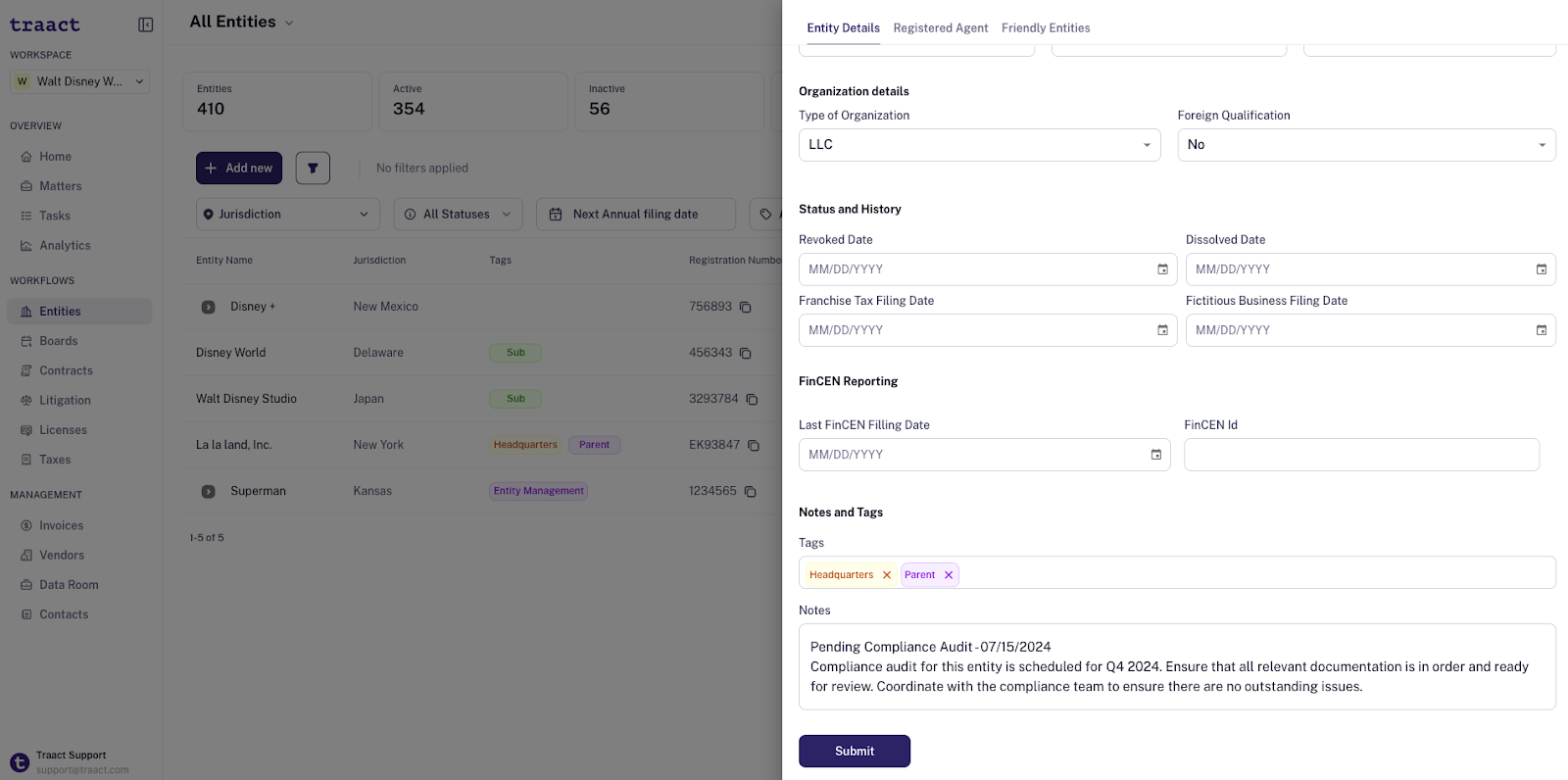
Step 3: In the drawer that opens, under the "Entity Details" tab, scroll down to "Notes and Tags" section;
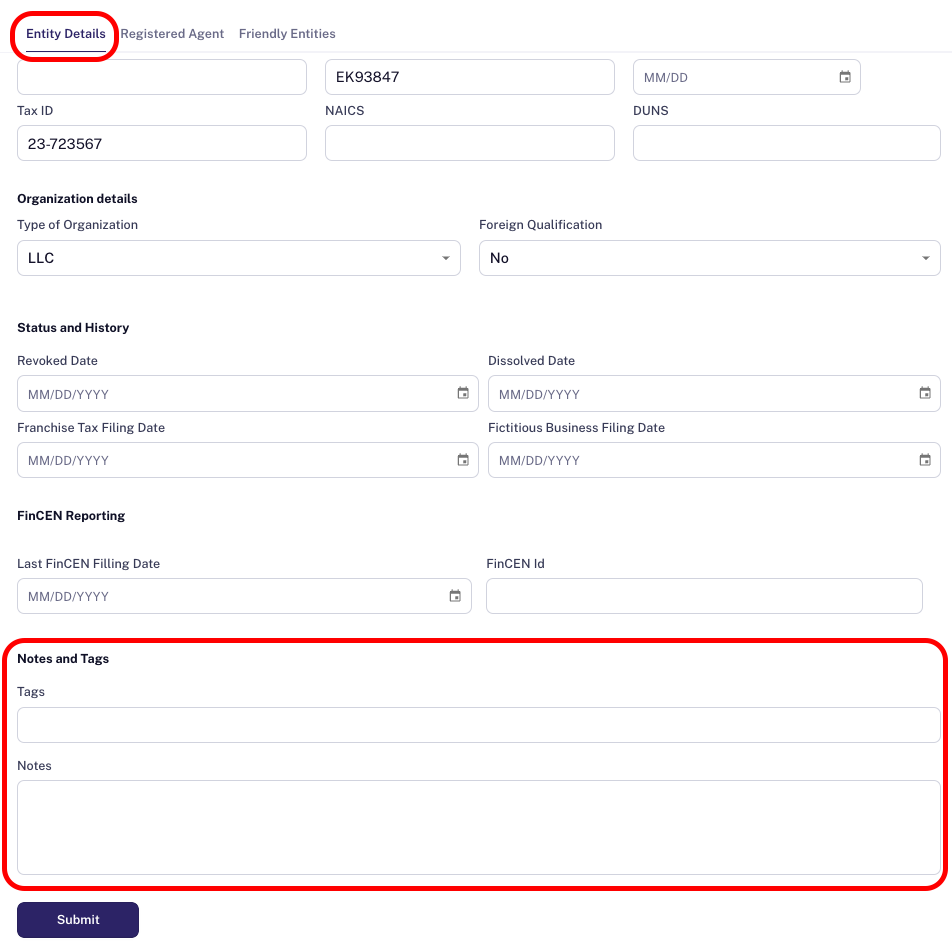
Step 4: Add notes and create the desired tags, then save the changes;
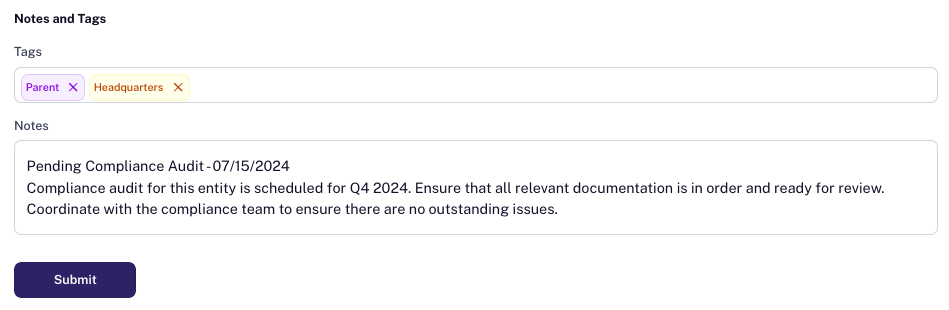
Step 5: Finally, the added notes and tags will be saved in this drawer. Tags will also be visible in the main entity table.
Note: If the "Tags" column is not visible on the main entity table, click on the eye icon and ensure the "Tags" column is selected for display.
Are Tags Searchable?
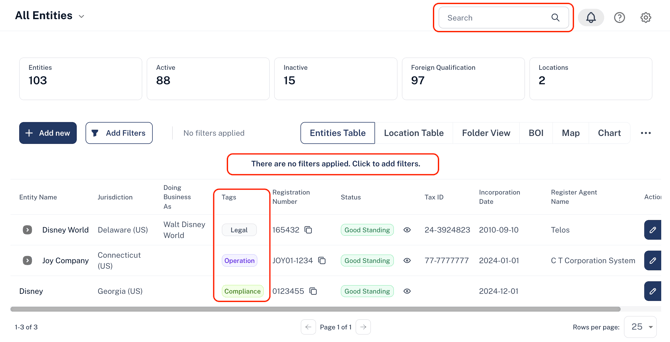
Yes, tags are searchable across the platform, including tags associated with entities. Additionally, the main entity table view includes a tag filter, enabling you to refine your search and quickly locate specific entities.
Need Help?
If you have any questions or need assistance with a request, please contact your Customer Success Manager or reach out to the Traact Support team.