-1.png?width=151&height=28&name=Traact_Logo_Blue%20(1)-1.png)
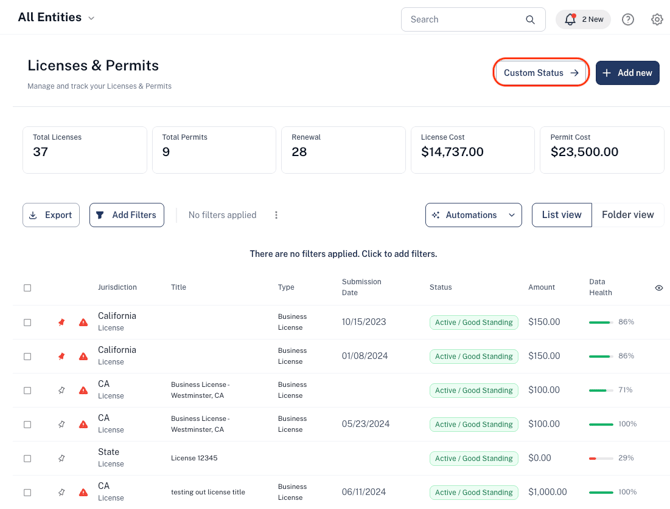
These custom statuses will also appear in the overview table, giving your team a visual and intuitive way to monitor license and permit status at a glance.
How to create your License Custom Statuses:
Step 1: Open the Custom Status Panel
Click on "Custom Status" from the License Module settings menu.
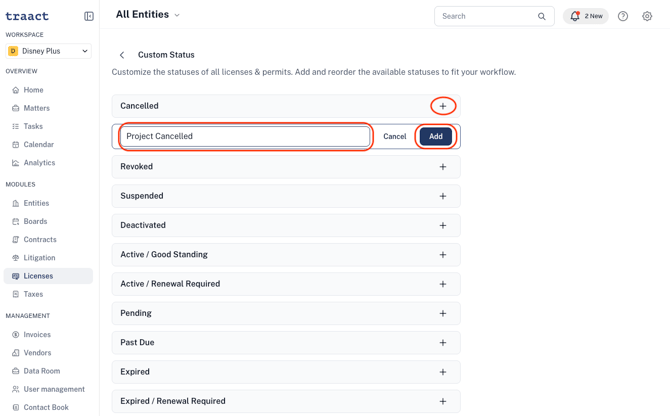
Step 2: Add Your First Custom Status
Select the "+" next to the system status you want to customize.
Enter your custom status name, then click "Add".
Note: The first custom status you add under a system status becomes the new default and will replace the original status throughout your workspace.
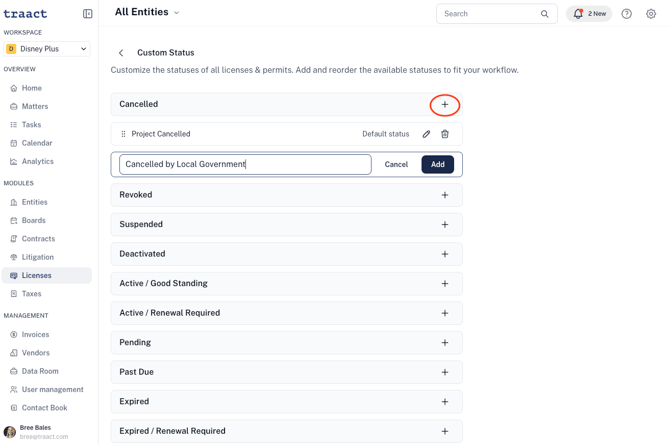
Step 3: Add More Custom Statuses (Optional)
To add additional statuses under the same category, click the "+" again, enter the new name, and click "Add".
Step 4: Save Your Changes
Click "Save" to apply your custom statuses across the system.
Once complete, all instances where the system default status was present will be updated with your new custom default status.
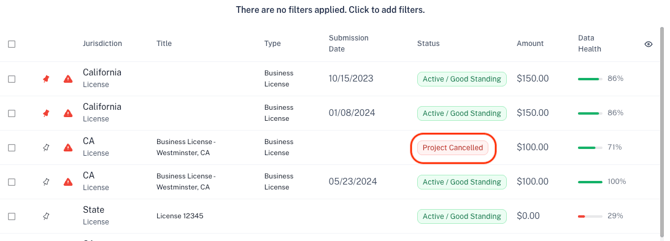
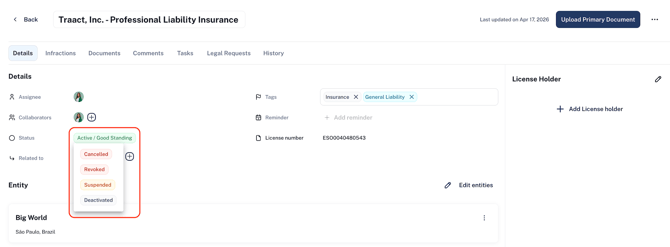
You can manually update a license’s status at any time:
-
Open the license artifact.
-
Click on the status given
-
Select the appropriate Custom Status from the dropdown menu.
Need Help?
If you have any questions or need assistance with a request, please contact your Customer Success Manager or reach out to the Traact Support team.