-1.png?width=151&height=28&name=Traact_Logo_Blue%20(1)-1.png)
Step 1: Create a New Enterprise Application
1. Navigate to Azure Portal: Go to Azure Portal.

2. Create Application:
- Select Create your own application.

- Name the application (e.g., "Traact SAML") and click Create.
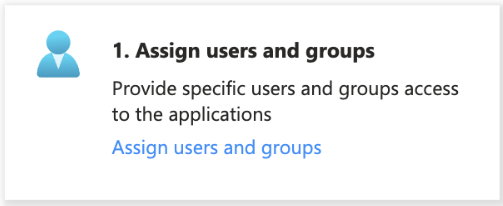
3. Assign Users and Groups: You can assign users and groups now or choose to do it later.
Step 2: Set Up Single Sign-On (SSO)
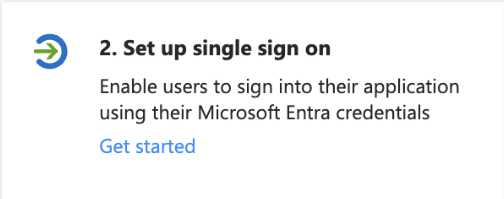
1. Start SSO Setup: Navigate to the SSO setup section within the Azure portal.
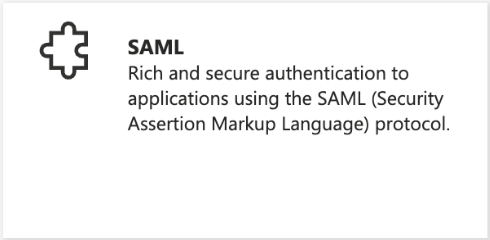
2. Select SAML: Choose SAML as the single sign-on method.
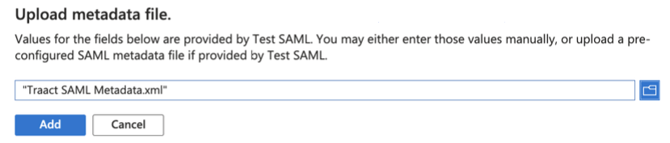
3. Upload Metadata File:
- Select Upload metadata file.

- Choose the metadata file provided by Traact and click Add.
4. Save Configuration: Save the SSO configuration.
Step 3: Obtain Federation Metadata XML
1. Download Federation Metadata:
- Scroll down to Step 3 of the SAML setup page.
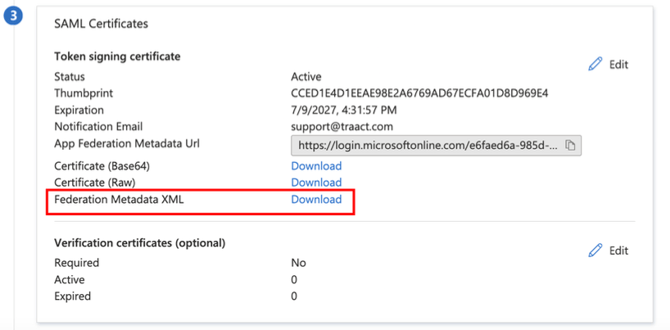
- Download the Federation Metadata XML file.
2. Send Metadata to Traact: Email the downloaded Federation Metadata XML file to Traact's support team.
Need Help?
If you have any questions or need assistance with a request, please contact your Customer Success Manager or reach out to the Traact Support team.