-1.png?width=151&height=28&name=Traact_Logo_Blue%20(1)-1.png)
Step 1: Open your Preferences
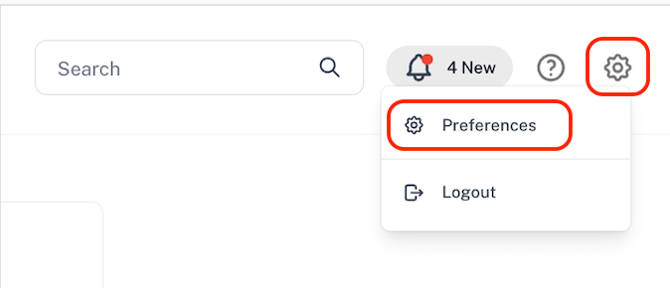
From your Traact Homepage, click the Settings (engine) icon in the top-right corner of the screen and select Preferences.
Step 2: Navigate to Integrations
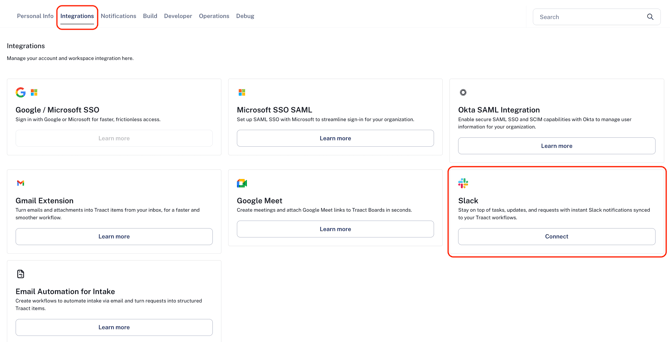
Within the Preferences page, select the Integrations tab from the top navigation bar.
Step 3: Connect your Slack workspace
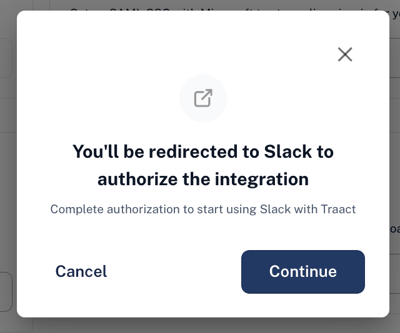
Click Connect (or Continue, if prompted) and follow the Slack authorization process. You'll be asked to grant Traact permission to connect with your Slack workspace.
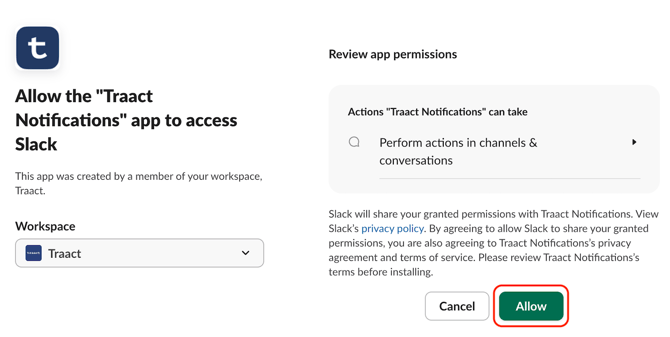
Once the authorization is complete, your Traact workspace will be successfully connected to Slack.
What notifications will I receive?
After connecting Slack, you can receive notifications for important activity across Traact, including:
-
Annual Report updates
-
Status updates
-
New task assignments
-
Documents added
-
Comments added
-
Matter updates
-
Other workflow notifications, depending on your notification preferences
Customize your Slack notifications
You can customize which notifications are sent to Slack at any time.
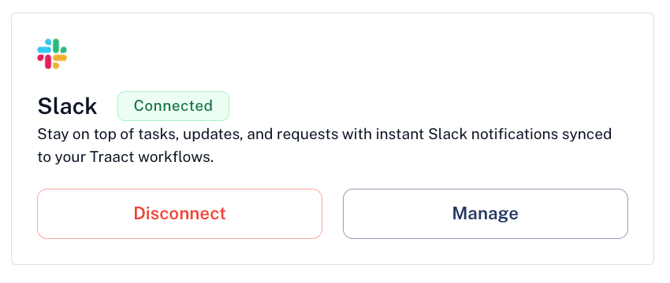
From the Integrations page, click Manage next to your Slack connection. This will take you to your Notifications settings.
Within each Traact module, you'll see a Slack column where you can choose which types of notifications you'd like to receive in Slack.
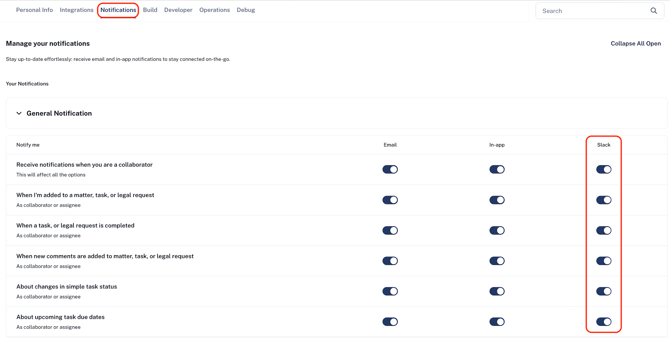
Your changes are saved automatically, allowing you to tailor notifications to your workflow.
Disconnect Slack
If you no longer wish to receive Slack notifications, you can disconnect your Slack workspace at any time by returning to Preferences → Integrations and selecting Disconnect.
Need Help?
If you have any questions or need assistance with a request, please contact your Customer Success Manager or reach out to the Traact Support team.