-1.png?width=151&height=28&name=Traact_Logo_Blue%20(1)-1.png)
Key Components of an Entity Org Chart
-
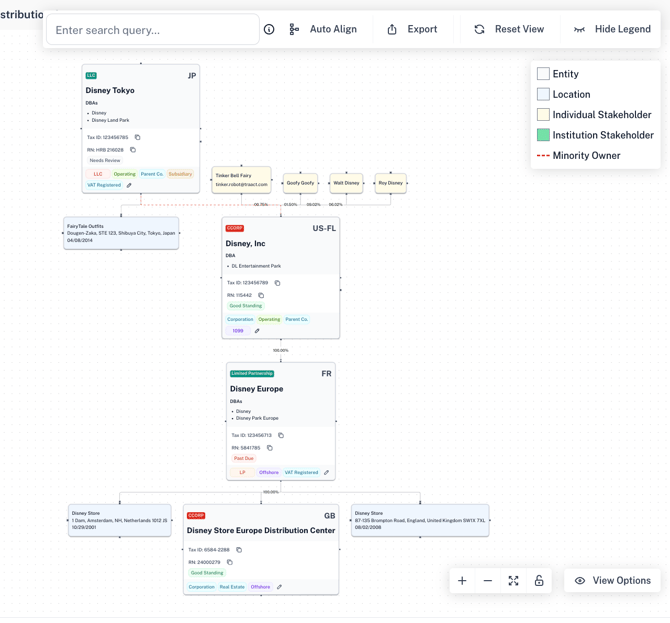
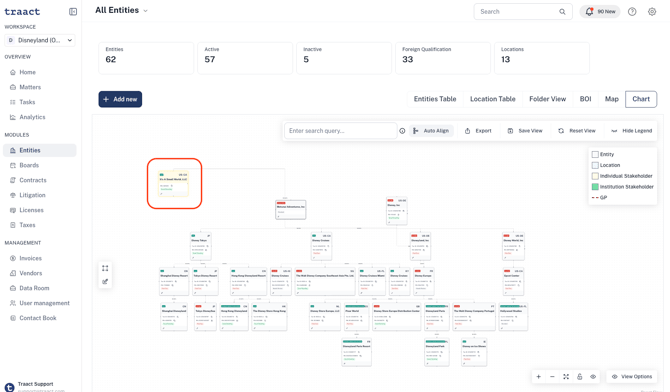
Legal Entities: Each box represents a separate legal entity—such as a corporation, LLC, or partnership.
-
Ownership Lines: Arrows or lines indicate ownership or control relationships, including percentages of ownership.
-
Jurisdictions: Some charts include the country or state of incorporation for each entity, which is important for compliance and tax planning.
-
Parent/Subsidiary Structure: The chart clearly shows which entities are parent companies and which are subsidiaries.
Why Use an Org Chart?
Entity org charts are crucial for understanding the corporate structure, particularly in complex or multinational organizations. They are used for:
-
Legal and Regulatory Compliance
-
Tax Strategy and Planning
-
Due Diligence in Mergers and Acquisitions
-
Internal Governance and Risk Management
How to Customize Your Org Chart View
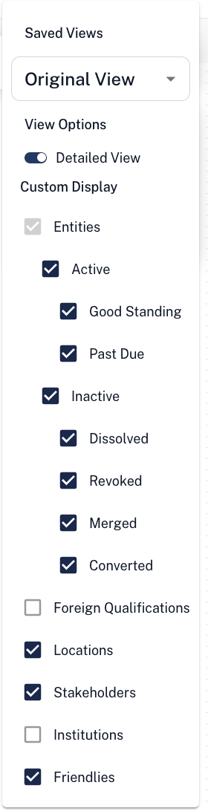
You can tailor the Org Chart to display only the information that matters most to you. The following details can be shown or hidden based on your preferences:
-
Entities and their status
-
Foreign Qualifications and their status
-
Locations
-
Stakeholders
-
Institutions
-
Friendlies
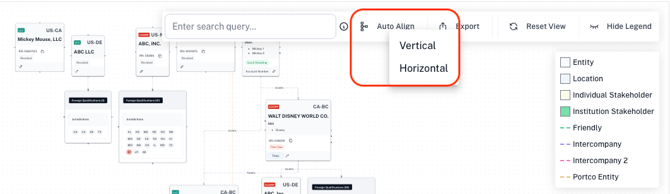
Additionally, you can choose to Auto-Align the Org Chart either horizontally or vertically for a cleaner layout.
Hiding Entities
You have several options for hiding entities in your Org Chart:
-
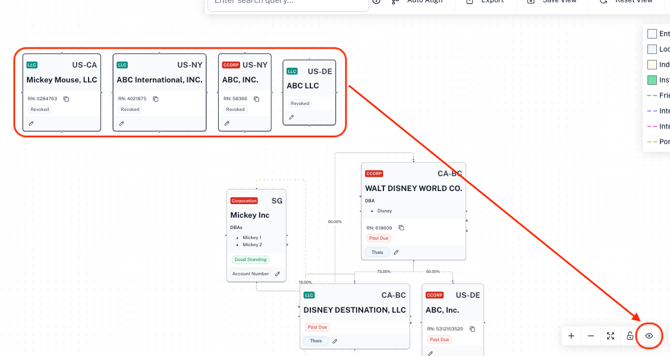
Hide individual or multiple entities
Select one or more entities by holding Ctrl (or Cmd on Mac) while clicking. Then, click the eye icon in the bottom toolbar to hide them. -
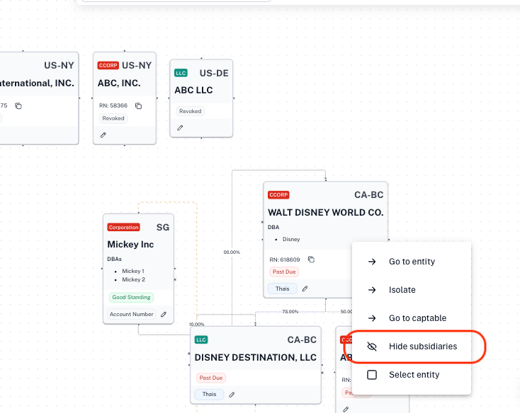
Hide all subsidiaries of a parent entity
Right-click on the parent entity and select “Hide Subsidiaries.”
These customizations make it easier to focus on specific parts of your structure, especially in large or complex org charts.
How to Search within an Org Chart
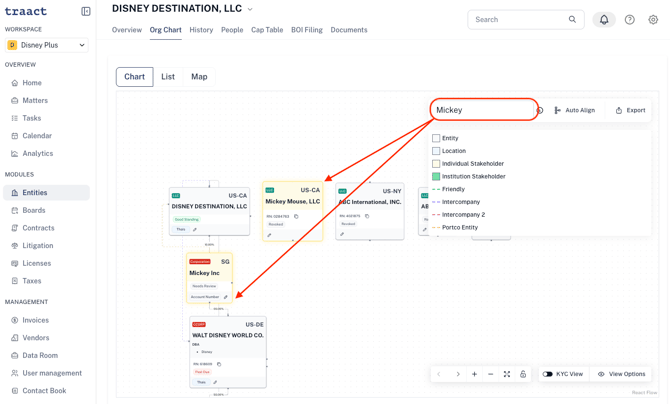
Within the Org Chart, select the search icon and enter the entity name or information you'd like to highlight within the Chart.
Advanced Search Help:
Use space-separated key:operator:value filters. Wrap values with spaces in quotes.
Supported Keys:
entity, branch, contact, institution, relation, ownership
Operators:
=, !=, <, <=, >, >=, :
Examples:
entity:Acme ownership<=10% relation:"Board Member" contact:"john.doe@example.com" branch:"New York"
How to Save Different Org Chart Views
You can save multiple Org Chart views within your workspace, making it easy to switch between different configurations without having to recreate them each time.
Saved views are private and only accessible through your login.
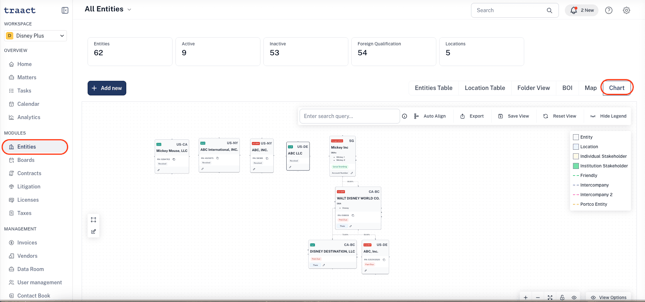
Go to the Entities module and click on the Chart tab.
Step 2: Customize Your Org Chart
You can use the available filters and display options to adjust the Org Chart to your preferred view. This includes showing or hiding fields, rearranging positions, or removing entities from the chart before saving.
Step 3: Click “Save View”Once your Org Chart is set up the way you want, click Save View on the Org Chart toolbar.

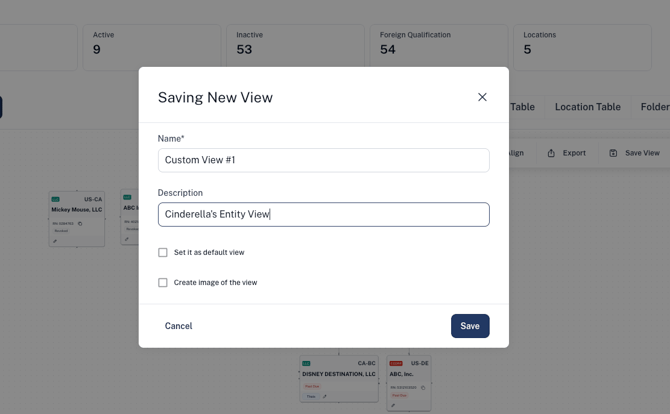
Step 4: Name and Describe Your View
-
Give your view a clear name and an optional description.
-
You can also:
-
Set it as your default view when opening the Chart tab.
-
Download a PNG image of the chart at the time of saving.
-
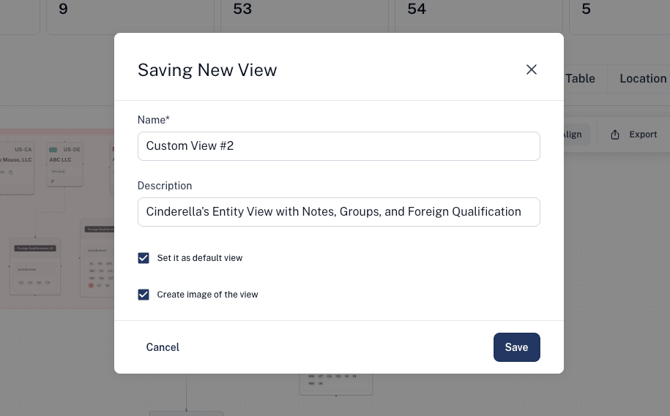
Step 5: Access Saved Views
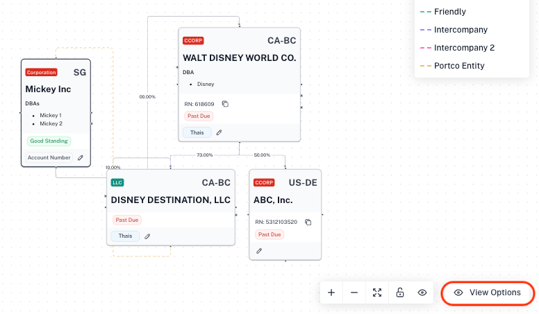
Click View Options in the bottom-right corner of the Chart tab.
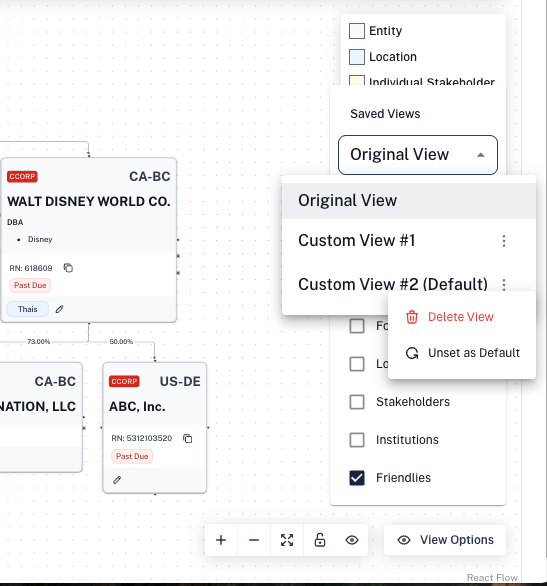
From the Saved Views dropdown, you can:
-
Toggle between your saved views
-
Set a view as your default
-
Remove a default view
-
Delete any saved views you no longer need
If an Entity is added or updated after you save a view, a pop-up will appear letting you know the Org Chart has changed. You’ll be asked if you want to apply those updates to your saved view.
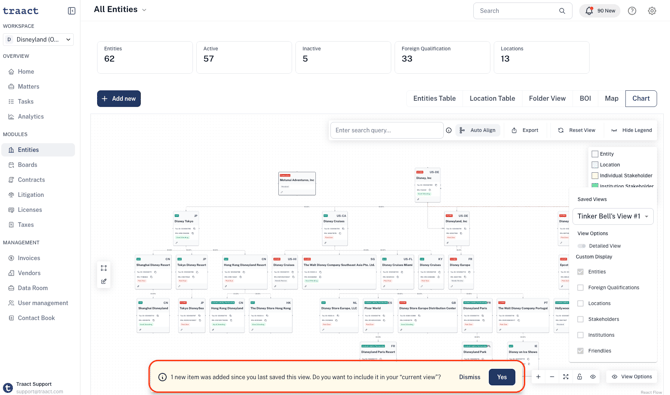
To keep the changes, simply save the view again.
Need Help?
If you have any questions or need assistance with a request, please contact your Customer Success Manager or reach out to the Traact Support team.