-1.png?width=151&height=28&name=Traact_Logo_Blue%20(1)-1.png)
With these features, you can:
-
Save and reuse filters you rely on frequently
-
Create reports based on those saved views
-
Schedule reports to be delivered automatically to the right people
Reports are created and managed in Traact and delivered by email as downloadable files.
This article walks you through how Saved Views work, how they connect to Reports, and how to create and manage scheduled reports step by step.
Understanding Saved Views
Saved Views allow you to capture a specific set of filters and reuse them anytime - without rebuilding the same filters over and over again.
Saved Views can be:
-
Private: visible only to you (and admins, they always have access)
-
Public: visible to everyone in your workspace
Anyone can create Saved Views, but only the creator and admins can edit them.
Saved Views are also used as the foundation for creating and scheduling reports.
How to Create a Saved View
Step 1: Go to the Entities module.
Step 2: Click Add Filters and apply the filters you need
(for example: jurisdiction, status, next annual filing date, or tags).
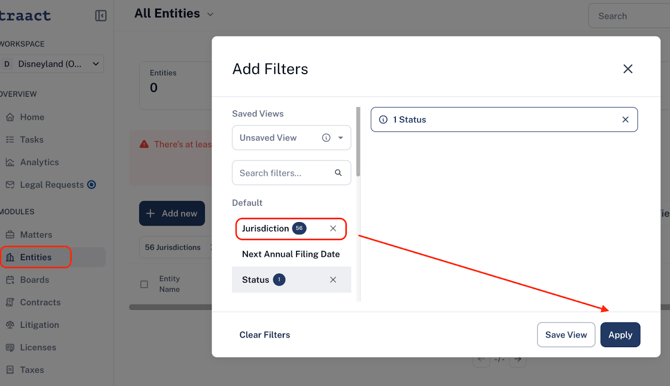
Step 3: Once your filters are applied, click Save View.
Step 4: Name your Saved View and choose whether it should be Private or Public.
Once saved, your view can be reused across devices and sessions at any time.
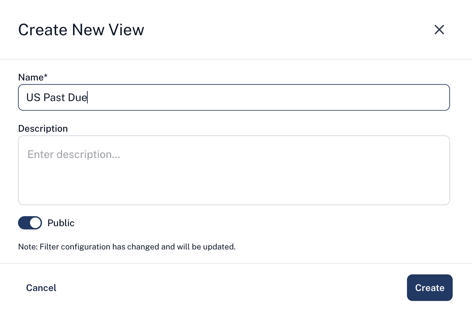
💡 Example: Create a Saved View for “US entities - Due Soon” so you can quickly check deadlines without rebuilding filters each time.
Understanding Scheduled Reports
Scheduled Reports allow you to generate and send reports automatically based on a Saved View - no manual exports required.
All these scheduled reports are always based on an existing Saved Views, which defines:
-
Which entities are included
-
Which filters are applies
Reports are created and managed inside Traact and can be:
-
Sent immediately (“Send now”), or
-
Scheduled to run automatically on a recurring basis (weekly, monthly, quarterly, etc.)
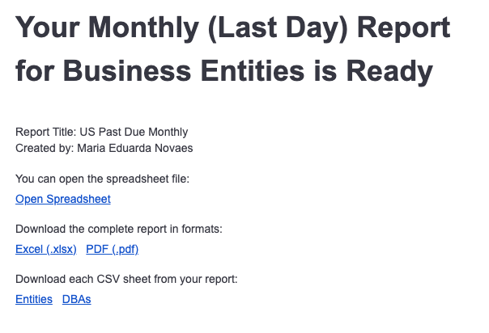
When a report runs, it is delivered by email as a downloadable file (Excel, PDF, or CSV).
Each recipient only sees data they already have permission to view.
How to Create a Scheduled Report
Step 1: Go to the Entities module.
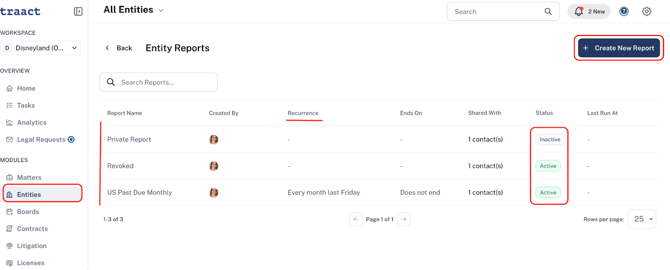
Step 2: Click the Reports tab in the top-right corner.
Step 3: Click Create New Report.
Step 4: Select a Saved View
(This defines which entities and filters the report will use.)
Step 5: Enter a report name and optional description.
Step 6: Choose who the report will be shared with.
Step 7: Select the recurrence
(for example: weekly, monthly, quarterly - or “does not repeat”).
Step 8: Choose whether the report is Private or Public, then click Create.
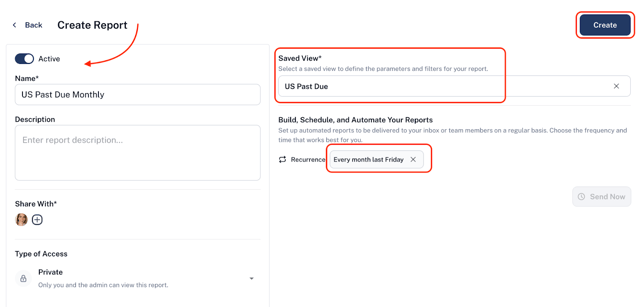
The report will be delivered automatically by email as a downloadable file (Excel, PDF, or CSV).
💡 Example:
Schedule a monthly report showing entities with upcoming compliance deadlines and automatically send it to your legal or finance team.
Managing Reports and Access
All reports can be managed from the Reports tab in the Entities module.
From there, you can:
-
View reports you have access to
-
Edit report details and recurrence
-
Send reports manually (“Send now”)
-
Mark reports as Inactive
Reports marked as Inactive stop running on schedule but are not deleted,serving as an archive.
Access rules
-
Public reports: visible to all users
-
Private reports: visible only to the creator
-
Admins: can always view, edit, or remove any report
Using Saved Views and Scheduled Reports in Other Modules
Saved Views and Scheduled Reports are also available in the Contracts module.
The workflow is the same as in the Entities module:
-
Apply filters in the Contracts module
-
Save a View based on those filters
-
Create a report from the Reports tab
-
Choose recipients and schedule the recurrence
The report will be generated and delivered the same way (Excel, CSV or PDF).
The only difference is that the report will contain contract data instead of entity data.
Important Notes
-
Reports are always based on Saved Views
-
If a Saved View changes, reports using that view will reflect the update
-
Scheduled Reports will probably expand to other modules in the future
Need Help?
If you have any questions or need assistance with a request, please contact your Customer Success Manager or reach out to the Traact Support team.