-1.png?width=151&height=28&name=Traact_Logo_Blue%20(1)-1.png)
How to Add a Custom Contract Template
Step 1. Go to the Settings tab in the Contract module.
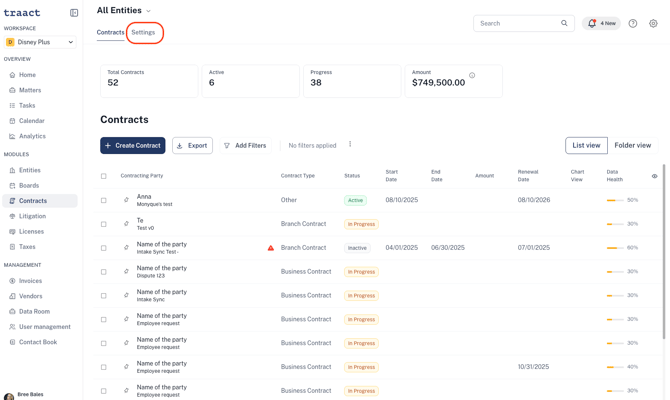
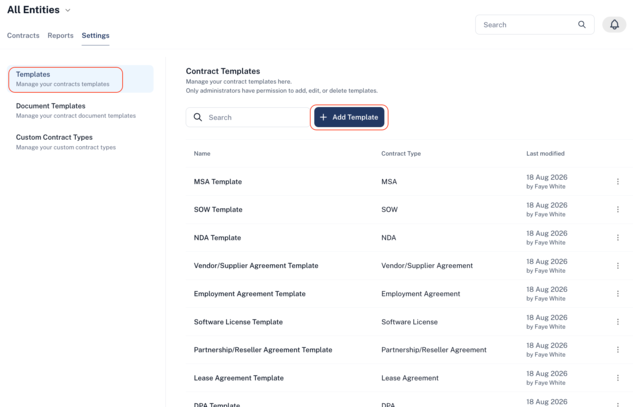
Step 2. In the Templates section, click + Add Template.
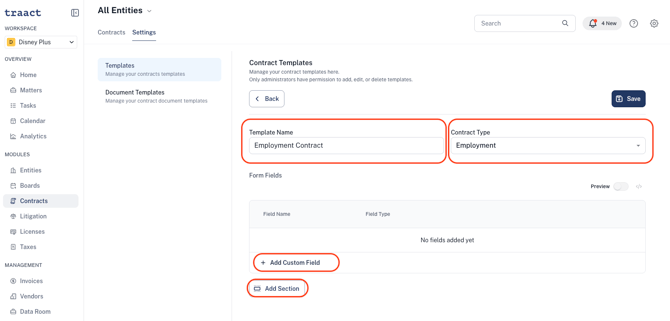
Step 3. Enter a template name and choose which Contract Type this template should be associated with.
Step 4. Build your template form by adding fields and sections:
-
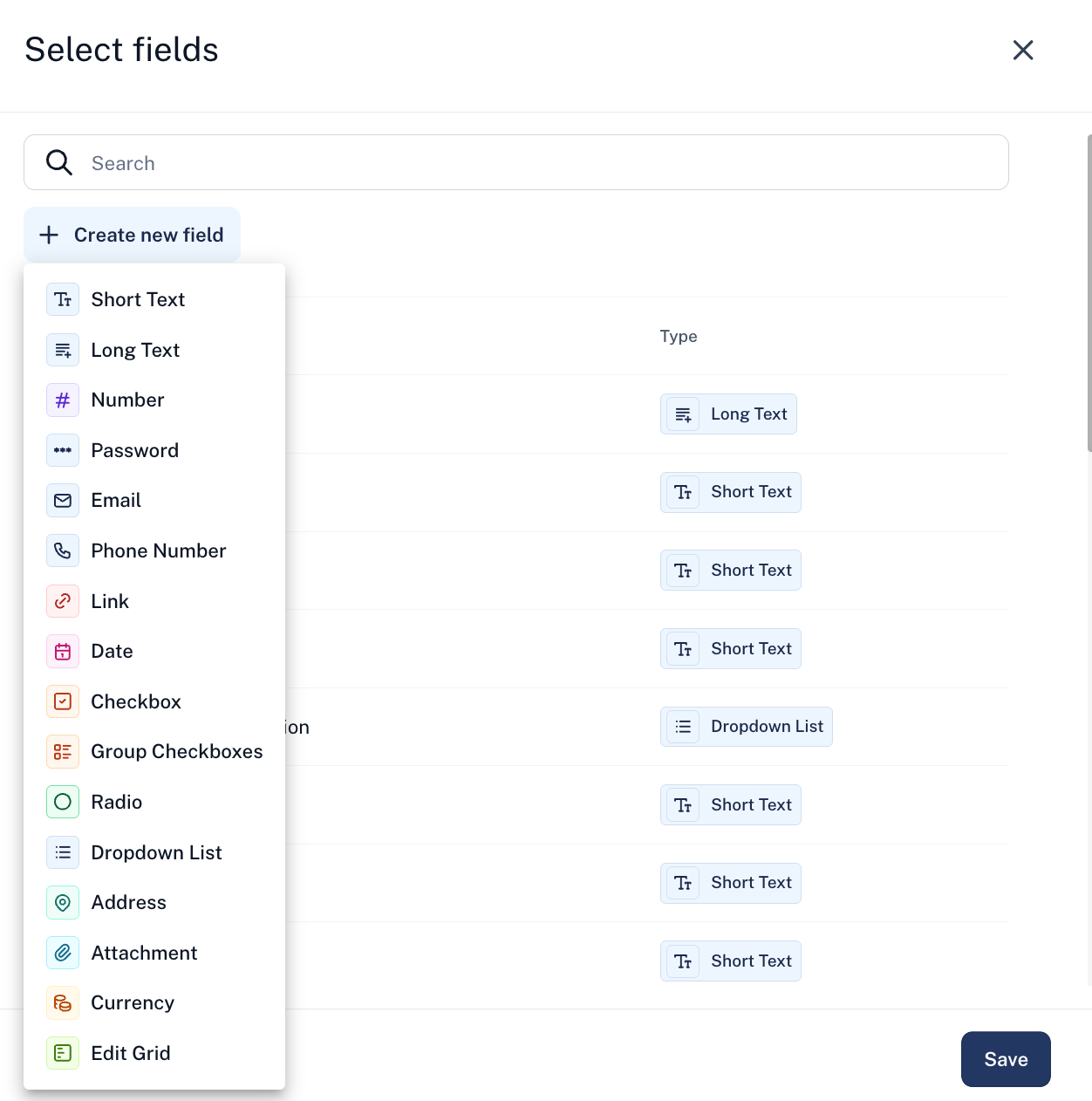
Click + Add Custom Field to insert existing fields, add multiple fields at once (using the checkboxes), or create a new field.
-
Click + Add Section to organize fields into groups that match your workflow.
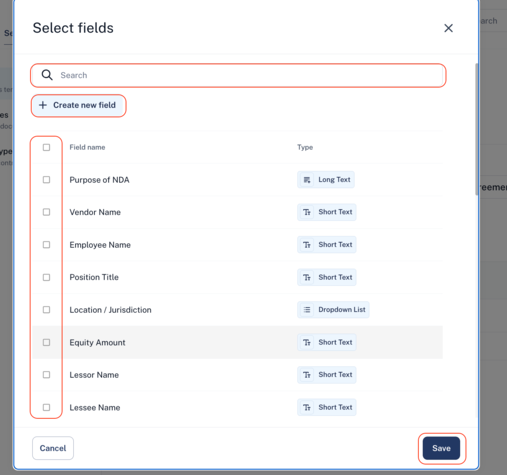
When creating a new custom field, you can choose from multiple field types.
Note: Custom fields can be synced with Legal Request forms if the field name and field type are an exact match.
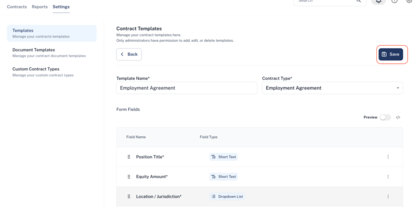
Step 5. Once your layout is complete, click Save in the top-right corner.
Using Your Custom Contract Templates
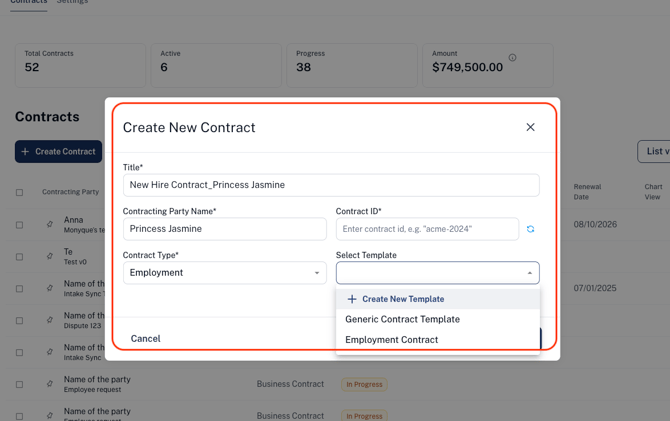
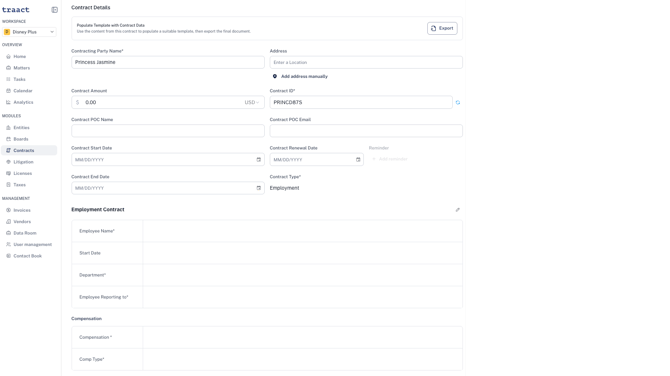
When adding a new contract, you’ll be able to select both the Contract Type and the Template. The contract will then auto-populate with the fields and sections you defined.
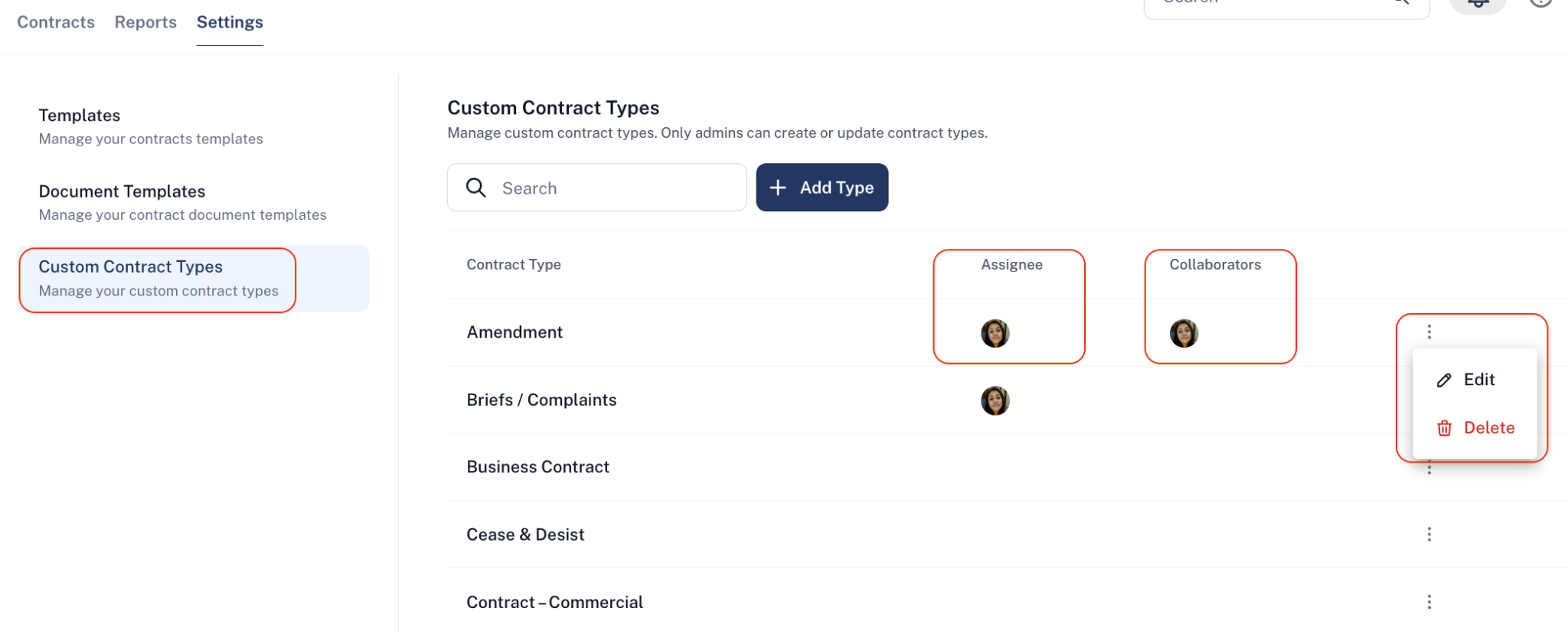
The Custom Contract Types page provides a complete overview of all available contract types. All Contracts can be edited. From this page, you can assign both an Assignee and a Collaborator to any contract type.
To manage or review contract types:
- Click the three-dot menu next to a specific contract type and select Edit to modify its settings.
- Scroll down the page to view additional options in the list.
Note: Only admins can create or update contract types
Need Help?
If you have any questions or need assistance with a request, please contact your Customer Success Manager or reach out to the Traact Support team.